
Overview
A comprehensive ERP solution designed to streamline core business operations with legal compliance and efficient document flow. It automates processes across departments, ensuring transparency and productivity. Real-time analytics empower informed decisions and help achieve business goals.
DIGITZ ERP is organised into modules — use the listing on the left to browse each module's documentation. The Accounting module is documented first; more modules are on the way.
Module Overview
The Accounting Module in DIGITZ ERP forms the financial core of the system, enabling accurate, transparent, and automated management of all accounting operations. It defines key masters such as Company, Customer, Supplier, and Payment Mode, establishing a structured base for every financial transaction.
The module manages all major accounting processes including Sales and Purchase Invoices, Payment and Receipt Entries, Contra Vouchers, Expense Entries, and Bank Reconciliation. Each transaction is seamlessly integrated with other modules, ensuring data consistency and real-time ledger updates across the system.
Comprehensive Financial Statements — including Profit & Loss, Balance Sheet, and Cash Flow Reports — provide complete financial visibility, compliance support, and performance insight, helping businesses maintain control and make informed financial decisions with confidence.
Configuration
Configuration in DIGITZ ERP defines how system features behave across different companies and modules. Many functions within the ERP are designed to adapt dynamically based on configuration settings, allowing businesses to customize workflows and control how specific features operate according to their organizational needs.
This section explains key company-level configurations such as Tax Configuration and Default Accounts Configuration, which influence how financial transactions are recorded and processed throughout the system.
The key company-level configuration tabs:
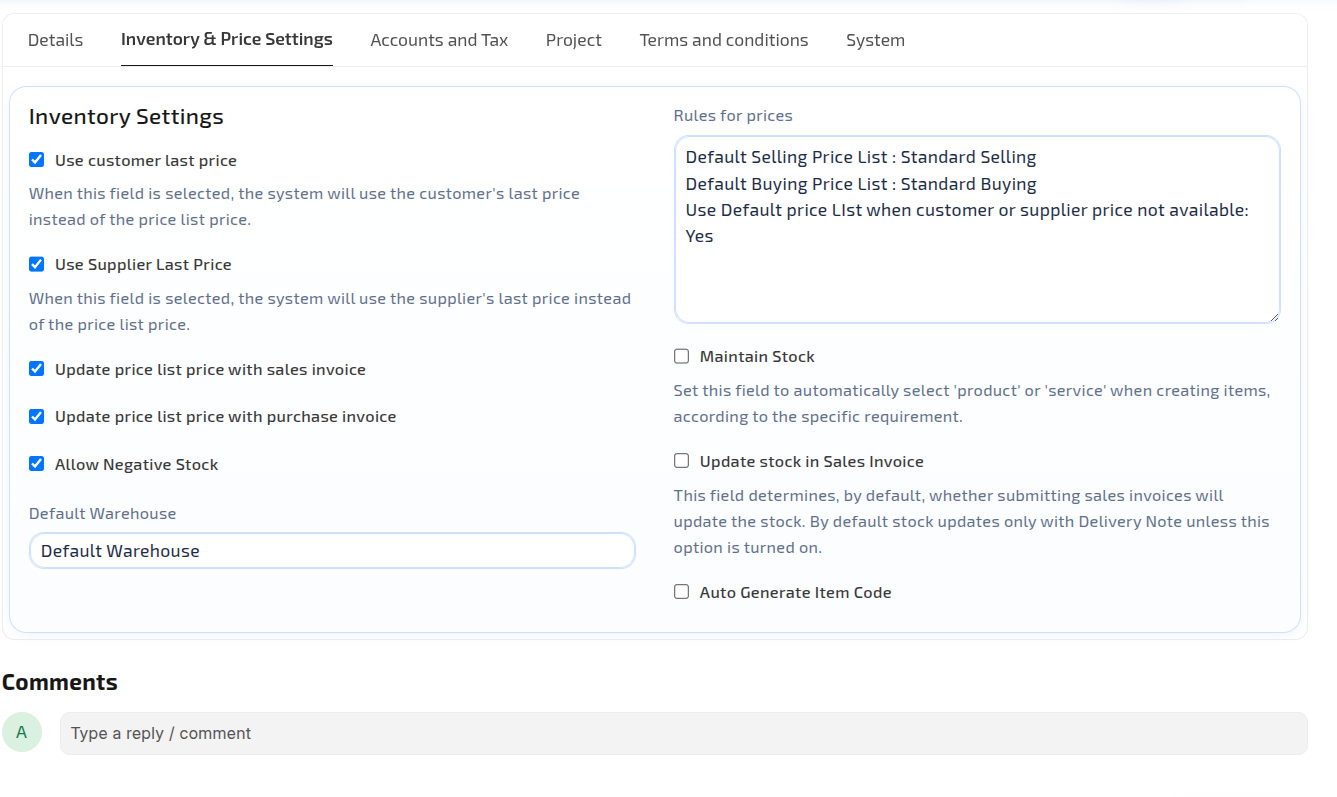
Company Settings → Inventory & Price Settings — pricing rules, price list behaviour, stock defaults, and the default warehouse.
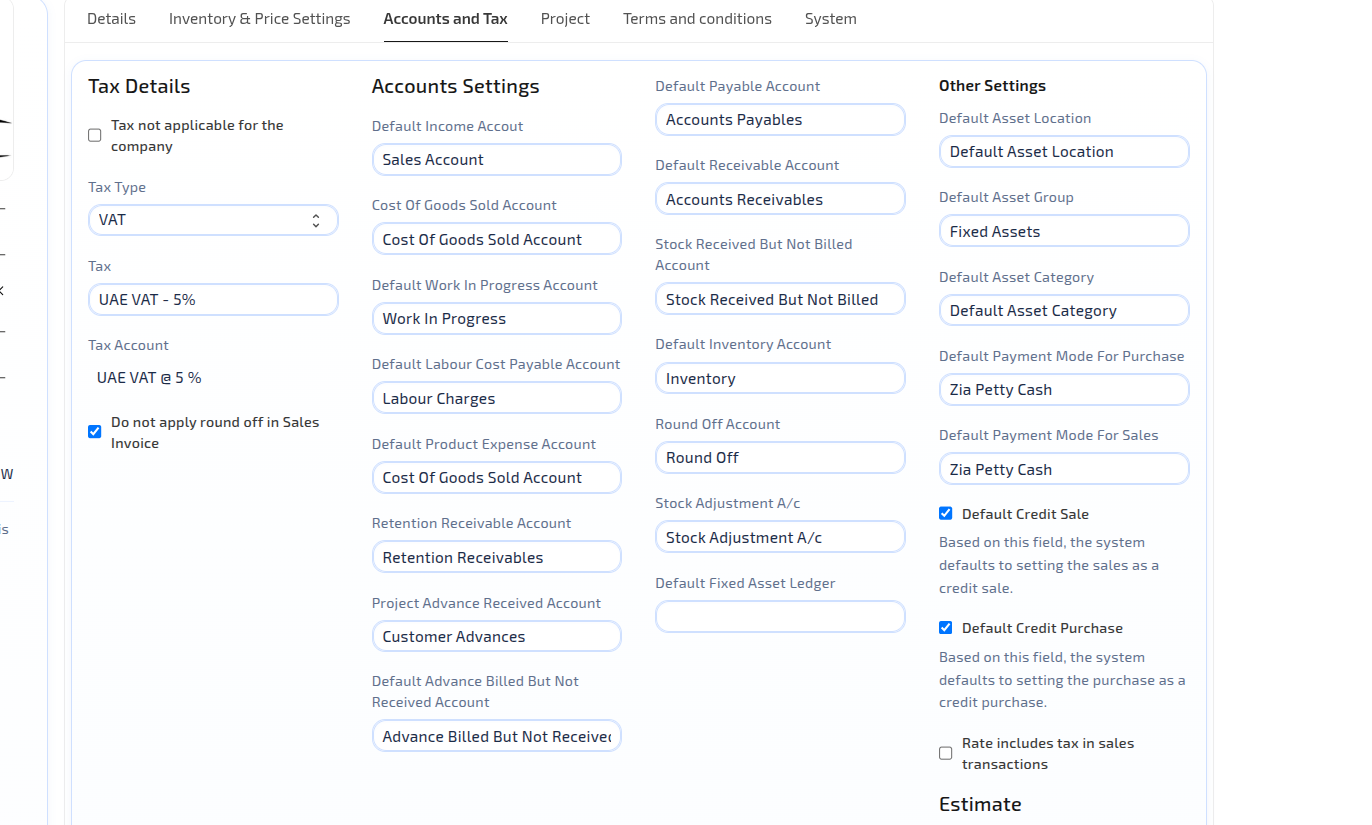
Company Settings → Accounts and Tax — tax details, default ledger accounts, payment modes, and credit sale/purchase defaults.
Tax Configuration
The Tax Configuration defines how taxes are applied, calculated, and posted across all financial transactions. It ensures that tax computation and ledger postings remain accurate and compliant with each company's applicable tax structure.
Purpose:
To standardize the calculation and posting of taxes across the system, ensuring accuracy, automation, and compliance in financial reporting.
How It Works:
Each company can configure its applicable Tax Type and assign a corresponding Tax Account. The Tax Type determines how the tax is applied within transactions, while the Tax Account defines where the tax amounts are posted in the general ledger. Once configured, these settings are automatically applied to invoices, purchases, and other taxable entries, with the flexibility for users to modify them when specific cases require custom handling.
Default Accounts Configuration
The Default Accounts Configuration defines a set of pre-assigned ledger accounts that the system automatically uses in financial transactions. These defaults help maintain consistency, accuracy, and efficiency across various accounting documents such as invoices, payments, and expense entries.
Purpose:
To simplify data entry and maintain uniformity in financial postings by predefining key ledger accounts used in common transactions.
How It Works:
Each company can set up its own default accounts — such as Receivable, Payable, Tax, Expense, and Income accounts. When a transaction is created, DIGITZ ERP automatically uses the relevant default account, which can be overridden at the document level whenever specific adjustments or exceptions are needed.
Default Credit Purchase and Credit Sales
The Default Credit Purchase and Default Credit Sales configurations define how the system determines the default transaction type — whether it is treated as a credit transaction or as a payment-based transaction linked to a specific payment mode.
Purpose:
To control the default posting behaviour for purchase and sales transactions, ensuring accurate handling of credit transactions versus direct payment transactions.
How It Works:
When Default Credit Purchase or Default Credit Sales is enabled, the system automatically treats new transactions under those categories as credit transactions. In such cases, postings are directed to the Payable or Receivable accounts as per the ledger configuration, instead of a cash or bank account.
If the option is disabled, the system defaults to the configured Payment Mode, and the corresponding payment accounts (e.g., cash or bank) are used for posting. This flexibility allows businesses to easily define whether their standard process involves credit sales/purchases or direct payments.
Sales Invoice
The Sales Invoice in DIGITZ ERP is a core accounting document used to record the sale of goods or services to customers. It finalizes the sales process and automatically updates ledgers, taxes, and stock records. Each Sales Invoice defines how income, receivables, and tax liabilities are recognized in the system.
Purpose
To record and post sales transactions accurately, ensuring that all related accounts such as income, receivables, and tax are updated automatically. The Sales Invoice serves as the official document for revenue recognition and customer billing.
How It Works
A Sales Invoice can be created directly or generated from preceding documents such as a Sales Order or Delivery Note. When the invoice is created, the system applies pricing, discounts, and tax rules derived from both the Company Configuration and the Item Tax Configuration. These configurations determine how tax rates are applied, whether the item is taxable or exempt, and how tax postings are made.
Depending on whether the transaction is a Credit Sale or linked to a Payment Mode, the corresponding ledger entries are automatically generated on submission. The document also respects company-level settings such as Rate Includes Tax, ensuring accurate tax handling and posting.
Key Fields
- Customer - The customer to whom the sale is made.
- Posting Date - The date on which the invoice is recorded in the financial books.
- Items / Services - List of products or services sold, including quantity, rate, and amount.
- Taxability - Determines whether each line item is taxable or exempt, based on company and item tax configurations.
- Line Item Discount (before tax) - Allows discounts to be applied to individual items before tax is calculated.
- Rate Includes Tax - Specifies whether the entered rate includes tax. This setting is inherited from the Company Configuration but can be changed at the document level if required.
- Project / Cost Center - Links the invoice to a specific project or cost center to track revenue by segment.
Price Control with Price List
The Price Control with Price List feature allows consistent and rule-based management of item pricing within the Sales Invoice. It ensures pricing accuracy across transactions while supporting flexibility for customer-specific and negotiated rates.
Purpose:
To automate item pricing through predefined price lists while providing configurable options for customer-level pricing and dynamic rate updates.
How It Works:
- Price Lists can be predefined with item rates and assigned to customers. When creating a Sales Invoice (or related document such as a Sales Order or Quotation), the system automatically fetches prices from the assigned price list.
- If a customer does not have a specific price list assigned, the Default Company Price List is used.
- The feature integrates with the Use Customer Last Price setting in Company Configuration, which takes priority. If enabled, the system applies the customer's last transaction rate instead of the price list rate.
- Optionally, users can save new transaction rates back to the price list to keep item pricing updated for future sales.
This mechanism maintains pricing consistency and control while allowing flexibility for exceptions when required.
Service Billing with Sales Invoice
The Service Billing with Sales Invoice feature enables the creation of invoices for services rendered, with or without stock items. It allows companies to manage both goods and service billing within the same document type.
Purpose:
To facilitate billing for non-stock services, ensuring that service-based transactions are properly recorded without affecting stock ledgers.
How It Works:
- The system allows users to create invoices that include items of type "Service", or items configured without the "Maintain Stock" flag in the Item Master.
- When such items are invoiced, the system automatically bypasses all stock-related postings (such as stock ledger and valuation entries).
- The accounting entries still record revenue and tax impact as usual, ensuring accurate income reporting while keeping inventory unaffected.
This feature is ideal for businesses that provide services, maintenance contracts, consulting, or mixed sales involving both goods and services.
Optional Update Stock Method
The Optional Update Stock Method within the Sales Invoice allows stock updates to occur directly through the invoice without the need to create a Delivery Note. This is particularly useful in cases where a separate delivery process is not required.
Purpose:
To provide flexibility in managing stock movements directly through sales invoicing, reducing the need for additional documentation steps when delivery notes are not applicable.
How It Works:
- When the Update Stock option is enabled in the Sales Invoice, the system performs stock ledger postings similar to those made through a Delivery Note.
- This means item quantities are deducted from stock, and valuation effects are applied directly upon submission of the invoice.
- If the Update Stock option is disabled, the invoice functions purely as a financial document, and stock is only affected through a separate Delivery Note (if created).
This feature provides flexibility for companies that wish to handle immediate stock reduction through invoicing, especially in simpler sales processes where delivery documentation is unnecessary.
Posting Behaviour
- On submission, accounting entries are automatically generated based on configuration.
- Credit Sales post to the Accounts Receivable account.
- Payment-based Sales post directly to the selected Payment Mode's linked account (Cash or Bank).
- Income and Tax accounts are updated per the company's Default Accounts, Tax Configuration, and Item Tax Settings.
- When Rate Includes Tax is enabled, the system separates the tax portion from the item rate before posting to the ledgers.
- Service Items bypass stock ledger entries while maintaining full financial posting for revenue and tax.
- When Update Stock is enabled, the system performs stock and valuation postings similar to a Delivery Note.
- The system adheres to the Perpetual Inventory method, ensuring that every stock movement is reflected immediately in both stock and accounting ledgers for real-time accuracy.
Integration
The Sales Invoice integrates seamlessly with:
- Inventory Module - Updates stock quantity and valuation (for stock items).
- Accounting Reports - Appears in Profit & Loss, Trial Balance, and General Ledger.
- Project Module - Links invoice revenue to the corresponding project or cost center.
- Price Lists and Customer Records - Ensures price consistency and traceability across all sales documents.
- Customer Ledger - Tracks outstanding balances and collections.
Purchase Invoice
The Purchase Invoice in DIGITZ ERP is a core accounting document used to record the purchase of goods or services from suppliers. It represents the financial recognition of an expense or liability after receiving goods or services and is directly linked to accounts payable and tax reporting.
Purpose
To record supplier bills accurately and update the company's financial ledgers for expenses, taxes, and payables.
The Purchase Invoice ensures that all purchase-related costs are accounted for properly, providing a clear picture of outstanding liabilities and purchase expenditures.
How It Works
A Purchase Invoice can be created directly or derived from preceding documents such as a Purchase Order or Purchase Receipt.
While the Purchase Receipt handles the physical movement of stock, the Purchase Invoice handles the financial posting.
When the invoice is created, the system applies rates, discounts, and tax rules based on both the Company Configuration and the Item Tax Configuration.
The document records the value of purchases, applicable taxes, and payable balances. It also identifies whether the purchase is on credit or linked to a payment mode for immediate settlement.
Key Fields
- Supplier - The supplier from whom goods or services are procured.
- Posting Date - The date on which the invoice is recorded in the company books.
- Items / Services - List of goods or services purchased, including quantity, rate, and amount.
- Taxability - Defines whether each item is taxable or exempt, based on company and item tax configurations.
- Line Item Discount (before tax) - Allows discounts to be applied to individual items before tax is calculated.
- Rate Includes Tax - Specifies whether item rates include tax. This setting is inherited from the Company Configuration but can be changed at the document level.
- Project / Cost Center - Links the purchase expense to a specific project or cost center for financial tracking.
Price Control with Price List
The Price Control with Price List feature helps maintain pricing consistency and control in procurement by referring to predefined supplier price lists.
Purpose:
To ensure that purchase pricing aligns with agreed supplier terms or standard cost structures, avoiding manual rate entry errors.
How It Works:
- Price Lists can be predefined and assigned to suppliers. When creating a Purchase Invoice or Purchase Order, item rates are automatically fetched from the assigned price list.
- If a supplier does not have a specific price list assigned, the Default Company Purchase Price List applies.
- The Use Supplier Last Price setting in Company Configuration takes priority when enabled — automatically applying the supplier's most recent purchase rate.
- New or adjusted rates can be optionally saved back to the price list for future reference.
This ensures accuracy and consistency in supplier pricing across all purchase documents.
Service Billing with Purchase Invoice
The Service Billing feature within the Purchase Invoice allows recording of service-based expenses such as maintenance, consultancy, or professional services without affecting stock.
Purpose:
To enable the booking of service expenses and supplier bills that do not involve inventory.
How It Works:
- Users can add Service-type items or items configured without Maintain Stock in the Item Master.
- These items are excluded from any inventory updates and are treated purely as expense entries.
- On submission, the system posts the necessary entries for Expense, Tax, and Payable accounts, ensuring accurate financial reflection without stock involvement.
This feature is ideal for handling service-related supplier invoices, rental expenses, or indirect purchases.
Posting Behaviour
- On submission, accounting entries are automatically generated based on configuration.
- Credit Purchases post to the Accounts Payable account.
- Payment-based Purchases post directly to the selected Payment Mode's linked account (Cash or Bank).
- Expense and Tax accounts are updated according to the company's Default Accounts, Tax Configuration, and Item Tax Settings.
- When Rate Includes Tax is enabled, the system automatically separates the tax portion from the item rate before posting.
- The system adheres to the Perpetual Inventory method, where stock and valuation updates are managed exclusively through Purchase Receipts, while Purchase Invoices handle only financial recognition.
Integration
The Purchase Invoice integrates seamlessly with:
- Supplier Ledger - Tracks payables and payment settlements.
- Purchase Receipt - Links financial postings with corresponding goods receipts for accurate reconciliation.
- Accounting Reports - Appears in Profit & Loss, Trial Balance, and General Ledger.
- Tax Reports - Reflects input tax credits and supplier tax details.
- Project / Cost Center - Associates purchases and expenses with specific business units or projects.
- Price Lists and Supplier Records - Maintains consistency and traceability of supplier pricing.
Conclusion
The Purchase Invoice in DIGITZ ERP provides a streamlined and accurate way to record supplier bills, manage expenses, and recognize payables.
With built-in controls for tax, pricing, and service billing, it ensures financial precision and compliance while maintaining seamless integration with supplier accounts and purchase receipts.
Receipt Entry
The Receipt Entry in DIGITZ ERP is a financial document used to record the receipt of funds into the company's Cash or Bank accounts.
It represents incoming payments from customers or other sources and ensures that all receipts are properly reflected in the company's financial ledgers.
The document supports both Customer Receipts (linked to sales transactions) and Other Receipts (not related to customer accounts), maintaining accurate control over incoming funds and their respective allocations.
Purpose
To record all incoming payments in an organized manner — whether received from customers, sales returns, credit notes, or other income sources — while ensuring that all corresponding ledgers such as Cash, Bank, and Receivables are updated automatically and accurately.
How It Works
A Receipt Entry is created whenever the company receives money through Cash, Bank Transfer, Cheque, or other payment modes.
Based on the Payment Mode, the system determines the target account (e.g., Cash Account or specific Bank Account) and creates the respective ledger postings upon submission.
DIGITZ ERP allows two types of receipts:
- Customer Receipt – Payments received from customers, linked to Sales Invoices, Sales Returns, or Credit Notes, or even received On Account without document allocation.
- Other Receipt – Payments received from non-customer sources, such as miscellaneous income, interest, adjustments, or deposits, without any customer reference.
Each receipt type is handled distinctly to ensure clear audit trails and accurate ledger updates.
Key Fields
- Receipt Type – Defines whether the entry is a Customer Receipt or an Other Receipt.
- Customer / Party – The customer or entity from whom the payment is received.
- Posting Date – The date when the payment is recorded.
- Payment Mode – The mode through which the payment is received (e.g., Cash, Bank Transfer, Cheque, etc.).
- Received To Account – The target account (Cash or Bank) where the funds are deposited.
- Amount – The total value of the receipt.
- Reference Type / Reference Name – Links the receipt to one or more documents such as Sales Invoice, Sales Return, or Credit Note.
- Project / Cost Center – Optionally associates the receipt with a specific project or cost center for analysis.
- Remarks – Notes or narration describing the payment details.
Customer Receipt
The Customer Receipt is used to record incoming payments from customers. It can be directly linked to outstanding Sales Invoices, Credit Notes, or Sales Returns, or it can be recorded On Account (without linking to specific documents).
Purpose:
To register customer payments against open invoices or to capture unallocated receipts that will be adjusted later.
How It Works:
- When the customer is selected, DIGITZ ERP automatically lists all open invoices, credit notes, or return documents for allocation.
- The user can allocate the received amount fully or partially against specific invoices.
- If the payment is received On Account, the amount is posted to the customer's account as an advance, available for later allocation.
- Upon submission, the system automatically updates the Accounts Receivable and the Cash/Bank accounts.
This ensures accurate tracking of customer receipts, outstanding balances, and cash flow visibility.
Other Receipt
The Other Receipt option is used when the incoming payment is not related to any customer transaction. Examples include miscellaneous income, interest income, deposits, or refunds.
Purpose:
To record non-customer-related income or inflows while ensuring proper accounting treatment.
How It Works:
- The user selects Other Receipt as the receipt type.
- The corresponding income or clearing account is chosen manually (e.g., "Other Income", "Bank Interest", or "Deposit Received").
- The Payment Mode determines the Cash or Bank account affected.
- On submission, the system debits the Cash/Bank account and credits the selected income or liability account.
This flexibility allows companies to record all types of incoming transactions systematically.
Workflow
- Create a new Receipt Entry.
- Select the Receipt Type (Customer or Other).
- Choose the Customer or Income Account, depending on the type.
- Enter the Posting Date, Payment Mode, and Amount.
- If it's a Customer Receipt, select open invoices or apply the amount On Account.
- If it's an Other Receipt, choose the appropriate income or adjustment account.
- Save and Submit the document.
- The system posts the ledger entries automatically based on configuration.
Posting Behaviour
- On submission, ledger entries are created based on the type of receipt and selected payment mode.
- Customer Receipts:
- Debit: Cash/Bank Account
- Credit: Customer (Accounts Receivable)
- Other Receipts:
- Debit: Cash/Bank Account
- Credit: Income or Other Specified Account
- Any On Account receipts remain as credit balances under the customer until adjusted against future invoices.
- All postings follow the Perpetual Accounting method, ensuring immediate impact on both financial and bank ledgers.
Integration
The Receipt Entry integrates seamlessly with:
- Sales Invoices / Credit Notes / Sales Returns – For payment allocation and settlement.
- Customer Ledger – To track customer-wise receipts and outstanding balances.
- Bank Reconciliation Module – To match system entries with actual bank statements.
- Accounting Reports – Appears in Cash Book, Bank Book, Trial Balance, and General Ledger.
- Project / Cost Center – Enables analysis of receipts by business segment.
Conclusion
The Receipt Entry in DIGITZ ERP provides a clear and efficient method for recording all types of incoming funds — whether from customers or other sources.
By supporting allocations to invoices, on-account receipts, and other income postings, it ensures real-time accuracy in both customer ledgers and cash/bank balances, making it an essential part of the ERP's financial workflow.
Receipt Entry For Advance
The Receipt Entry for Advance (against Sales Order) in DIGITZ ERP is used to record advance payments received from customers before goods or services are delivered or invoiced.
It allows users to collect and track advance amounts securely, link them to specific Sales Orders, and automatically adjust them later when a Sales Invoice is generated.
Purpose
To manage customer advances efficiently by linking received payments directly to their corresponding Sales Orders, ensuring that every advance amount is traceable and properly adjusted during invoicing.
How It Works
- When a customer makes an advance payment for an order, a Receipt Entry is created with the type set as Advance (against SO).
- The user selects the Customer and the related Sales Order to which the advance payment belongs.
- The Payment Mode determines whether the payment is received in Cash or Bank, and the corresponding account is selected automatically based on configuration.
- The system records the transaction by crediting the Customer Advance Account (or Receivable Control Account) and debiting the Cash/Bank Account.
- The advance amount remains linked to the selected Sales Order until it is later adjusted against a Sales Invoice.
- During invoicing, the system fetches available advances for that customer and allows the user to allocate the amount, ensuring accurate billing and accounting.
Steps to Record Advance Receipt
- Go to Accounts → Receipt Entry → New.
- Set Receipt Type to Advance (against SO).
- Select the Customer from whom the advance is received.
- Choose the corresponding Sales Order for which the advance is being made.
- Select the Payment Mode (e.g., Cash, Bank Transfer, Cheque).
- Enter the Amount Received and Posting Date.
- Save and Submit the document.
Once submitted, DIGITZ ERP will automatically create ledger postings and tag the advance to the selected Sales Order.
Posting Behaviour
- Debit: Cash/Bank Account
- Credit: Customer Advance Account
When a Sales Invoice is later created for the same Sales Order, the system allows automatic adjustment of the recorded advance, transferring the balance from the Customer Advance Account to Accounts Receivable, reducing the amount due.
Integration
The Receipt Entry for Advance (against SO) integrates with:
- Sales Order – Links the advance payment to the specific order.
- Sales Invoice – Allows adjustment of advance during invoicing.
- Customer Ledger – Tracks advances and adjustments for each customer.
- Bank Reconciliation Module – Matches recorded advances with actual deposits.
Conclusion
The Receipt Entry for Advance (against SO) in DIGITZ ERP provides an accurate and efficient way to handle customer advance payments.
By directly linking each advance to its Sales Order, it ensures smooth adjustment during invoicing, eliminates manual tracking, and maintains complete financial transparency.
Receipt Reconciliation
Overview
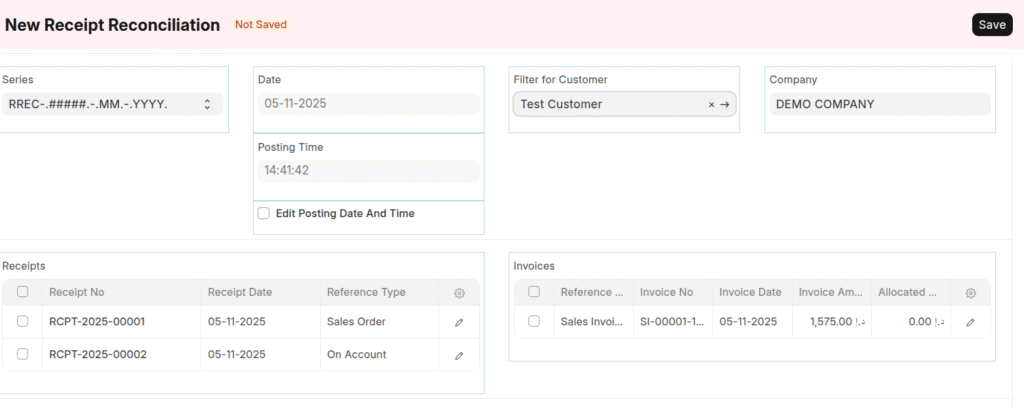
The Receipt Reconciliation feature in DIGITZ ERP allows users to settle previously received payments — such as On Account receipts or Advance payments (against Sales Orders) — with the corresponding Sales Invoices once they are generated.
This ensures that all received amounts are properly allocated to their related invoices, maintaining accurate customer balances and clear financial records.
Purpose
To provide an easy and reliable way to adjust unallocated receipts or advances against outstanding invoices, reducing manual tracking and ensuring that customer accounts reflect the true payment status.
How It Works
- When payments are recorded On Account or against a Sales Order, they initially remain unallocated in the customer ledger as advance credits.
- Once Sales Invoices are created, users can open the Receipt Reconciliation screen to allocate these receipts against one or more invoices.
- The system displays all available unadjusted receipts and open invoices for the selected customer.
- The user selects the applicable receipt(s) and the invoice(s) to be reconciled.
- Upon submission, DIGITZ ERP automatically adjusts the customer ledger, transferring the amount from the Customer Advance or On Account balance to Accounts Receivable.
This process ensures that every payment is properly matched with its respective invoice, maintaining accuracy in both customer statements and financial reports.
Steps to Perform Receipt Reconciliation
- Go to Accounts → Receipt Reconciliation → New.
- Select the Customer whose receipts and invoices need reconciliation.
- The system lists all unallocated receipts and open invoices for that customer.
- Choose the receipts and invoices to be settled.
- Enter the amounts to be adjusted (full or partial).
- Save and Submit the reconciliation.
After submission, the system automatically updates the balances, marking the receipts as adjusted and reducing the outstanding invoice amounts accordingly.
Posting Behaviour
- On reconciliation:
- The system transfers the credited amount from the Customer Advance Account or On Account balance to Accounts Receivable.
- Customer's outstanding amount is reduced by the reconciled amount.
- No additional cash or bank movement occurs, as this is purely an accounting adjustment between receivable balances.
Integration
The Receipt Reconciliation feature integrates with:
- Receipt Entry – Fetches unadjusted On Account or Advance receipts.
- Sales Invoice – Lists outstanding invoices eligible for settlement.
- Customer Ledger – Updates and reflects adjusted and pending balances in real time.
- Accounting Reports – Ensures accurate reflection of adjusted and outstanding amounts in Accounts Receivable and Customer Statements.
Conclusion
The Receipt Reconciliation feature in DIGITZ ERP provides a simple and controlled way to match advance or unallocated payments with invoices.
By ensuring that every receipt is properly settled, it maintains clean customer ledgers, minimizes manual reconciliation work, and delivers complete accuracy in financial reporting.
Payment Entry
The Payment Entry in DIGITZ ERP is a financial document used to record payments made to suppliers or other parties through various modes such as Cash, Bank Transfer, or Cheque.
It represents the outflow of funds from the company and ensures that all supplier payments are accurately reflected in the accounting ledgers.
The Payment Entry supports multiple payment types — including Supplier Payments (against Invoices), Advance Payments (against Purchase Orders), and On Account Payments — providing full control and traceability over every outgoing transaction.
Purpose
To manage and record all outgoing supplier payments, whether settled against specific invoices, made as advances, or issued on account.
This ensures that supplier accounts remain accurate, payables are updated automatically, and all financial movements are correctly posted to ledgers.
How It Works
A Payment Entry is created whenever the company makes a payment to a supplier.
The system automatically determines the payment mode and corresponding Cash or Bank Account and posts the necessary debit and credit entries upon submission.
DIGITZ ERP supports three primary use cases for supplier payments:
- Supplier Payment – Payments made against Purchase Invoices or Debit Notes.
- Payment Entry for Advance (against Purchase Order) – Advance payment made to a supplier before goods or services are received.
- On Account Payment – Payment made without allocating to any invoice or order, usually for future adjustment.
Key Fields
- Payment Type – Defines the transaction as Supplier Payment, Advance Payment, or On Account Payment.
- Supplier – The supplier to whom the payment is made.
- Posting Date – The date on which the payment is recorded.
- Payment Mode – Mode of payment such as Cash, Bank Transfer, or Cheque.
- Paid From Account – The account from which the funds are disbursed.
- Amount Paid – The total amount being paid to the supplier.
- Reference Type / Reference Name – The linked document, such as Purchase Invoice or Purchase Order.
- Project / Cost Center – Optional field for allocating the payment to a project or business division.
- Remarks – Additional notes for reference or audit purposes.
Supplier Payment
The Supplier Payment option is used to record payments made against one or more Purchase Invoices or Debit Notes.
It ensures that each supplier invoice is properly settled and reflected in the Accounts Payable ledger.
Purpose:
To settle supplier liabilities efficiently and maintain accurate payable balances.
How It Works:
- When a supplier is selected, DIGITZ ERP automatically displays all open Purchase Invoices and Debit Notes.
- The user can allocate the payment fully or partially against the listed documents.
- Upon submission, the system debits the supplier's account and credits the Cash or Bank Account, updating both ledgers instantly.
- The payment automatically reduces the outstanding amount in the supplier ledger and updates the Payables Report.
Payment Entry for Advance (against Purchase Order)
The Payment Entry for Advance allows recording of advance payments made to suppliers before receiving goods or services.
These advances are linked directly to Purchase Orders and can later be adjusted when the corresponding Purchase Invoice is created.
Purpose:
To record and track supplier advances with full traceability to their corresponding purchase orders.
How It Works:
- Select the Supplier and the related Purchase Order.
- Enter the payment details such as Payment Mode, Amount, and Posting Date.
- On submission, the system debits the Supplier Advance Account and credits the Cash/Bank Account.
- When the Purchase Invoice is later generated, DIGITZ ERP allows the advance to be adjusted automatically against the payable amount.
This ensures that supplier advances are properly accounted for and do not remain unadjusted.
On Account Payment
An On Account Payment is used when an amount is paid to a supplier without any linked Purchase Order or Invoice — typically in anticipation of future bills or as a security deposit.
Purpose:
To record general supplier payments that are not yet linked to specific transactions but will be adjusted later.
How It Works:
- The payment is made and recorded without linking to any invoice or order.
- The system credits the Cash/Bank Account and debits the Supplier Account, holding the balance as an unadjusted credit.
- Later, when the relevant Purchase Invoice is posted, this amount can be settled using the Payment Reconciliation feature.
Workflow
- Navigate to Accounts → Payment Entry → New.
- Choose the Supplier and set the Payment Type.
- Select the Payment Mode and Paid From Account.
- Enter the Amount and Posting Date.
- If paying against Invoices or Purchase Orders, select them for allocation.
- Save and Submit the entry.
- The system automatically posts the required debit and credit entries to the respective ledgers.
Posting Behaviour
- Supplier Payment (against Invoice):
- Debit: Supplier (Accounts Payable)
- Credit: Cash/Bank Account
- Advance Payment (against Purchase Order):
- Debit: Supplier Advance Account
- Credit: Cash/Bank Account
- On Account Payment:
- Debit: Supplier (Advance/Control Account)
- Credit: Cash/Bank Account
All postings are processed under the Perpetual Accounting method, ensuring immediate updates in both supplier and financial ledgers.
Integration
The Payment Entry integrates seamlessly with:
- Purchase Invoice – For direct settlement of supplier payables.
- Purchase Order – For recording advance payments.
- Supplier Ledger – Reflects payments and remaining balances in real time.
- Bank Reconciliation Module – Matches recorded payments with actual bank transactions.
- Accounting Reports – Appears in Cash Book, Bank Book, Trial Balance, and Accounts Payable Reports.
Conclusion
The Payment Entry in DIGITZ ERP provides a complete framework for recording and managing supplier payments — whether made against invoices, as advances, or on account.
By integrating with Purchase Orders, Purchase Invoices, and ledgers, it ensures accurate payable tracking, controlled cash flow, and reliable financial reporting.
Payment Reconciliation
The Payment Reconciliation feature in DIGITZ ERP allows users to settle payments made to suppliers — such as Advance Payments (against Purchase Orders) or On Account Payments — with their corresponding Purchase Invoices once supplier bills are received.
This feature ensures that advance or unallocated supplier payments are properly adjusted, keeping the supplier ledger and Accounts Payable up-to-date and accurate.
Purpose
To simplify the process of matching unallocated supplier payments or advances with their respective Purchase Invoices, ensuring that all payments are correctly accounted for and reflected in the company's payables.
It provides a clear and controlled way to link prior payments with actual supplier bills, reducing manual tracking and reconciliation errors.
How It Works
- When supplier payments are recorded On Account or against Purchase Orders, they initially remain as advance balances in the supplier ledger.
- Once Purchase Invoices are submitted, these payments can be allocated using the Payment Reconciliation screen.
- The system automatically lists all unadjusted payments and open Purchase Invoices for the selected supplier.
- Users can perform manual allocations or use the Auto Allocate button to let the system automatically match payments with invoices based on date and balance.
- Upon submission, DIGITZ ERP transfers the reconciled amounts from the Supplier Advance Account or On Account balance to the Accounts Payable account, reducing the supplier's outstanding balance.
This ensures that all supplier payments are properly matched to invoices, maintaining clean and accurate ledgers.
Auto Allocate Feature
The Auto Allocate button simplifies reconciliation by automatically linking available payments with corresponding invoices.
It intelligently distributes advance amounts to the oldest unpaid invoices first, ensuring systematic and chronological allocation.
How It Works:
- Select the Supplier in the Payment Reconciliation form.
- Click Auto Allocate.
- The system automatically matches eligible advance or On Account payments with open Purchase Invoices based on balance and posting date.
- Users can review or manually adjust allocations before submission.
This automation greatly reduces manual effort in large-volume reconciliation scenarios.
Steps to Perform Payment Reconciliation
- Go to Accounts → Payment Reconciliation → New.
- Select the Supplier whose payments and invoices need reconciliation.
- The system lists all unallocated supplier payments and open Purchase Invoices.
- Click Auto Allocate for automatic matching, or manually select payments and invoices to reconcile.
- Verify the allocation details and amounts.
- Save and Submit the reconciliation document.
Once submitted, the system updates the supplier ledger, reducing outstanding payables and marking the related advances as adjusted.
Posting Behaviour
- On submission, the system performs a ledger adjustment between:
- Supplier Advance Account / On Account balance → Accounts Payable Account
- The supplier's outstanding amount is reduced by the reconciled total.
- No Cash or Bank entries occur in this process — as it is purely an accounting adjustment within liability accounts.
Integration
The Payment Reconciliation feature integrates seamlessly with:
- Payment Entry – Fetches unadjusted supplier advances and On Account payments.
- Purchase Invoice – Displays open invoices eligible for reconciliation.
- Supplier Ledger – Reflects adjusted and remaining balances instantly after submission.
- Accounting Reports – Updates Accounts Payable, Advance Accounts, and Supplier Statements for accurate financial reporting.
Conclusion
The Payment Reconciliation feature in DIGITZ ERP provides a streamlined and reliable way to match supplier advances or On Account payments with their corresponding Purchase Invoices.
With features like Auto Allocate, it reduces manual workload, ensures precise payable adjustments, and maintains complete accuracy and transparency across supplier accounts and financial ledgers.
Contra Voucher
The Contra Voucher in DIGITZ ERP is a financial document used to record fund transfers between Cash and Bank accounts within the same company.
It is similar to a Journal Entry, but restricted exclusively to accounts of type Cash or Bank on both the debit and credit sides.
This voucher helps track internal fund movements, such as Cash to Bank deposits, Bank to Cash withdrawals, or Bank to Bank transfers, without involving customers or suppliers.
Purpose
To record internal transfers and movements of money between the company's cash and bank accounts, ensuring proper ledger balance updates while maintaining complete visibility of internal fund flow.
How It Works
- The Contra Voucher is used when funds move within the organization's own accounts — for example, depositing cash into a bank, withdrawing from the bank for petty cash, or transferring between bank accounts.
- The user selects one Cash or Bank Account to be debited and another to be credited.
- The voucher ensures both debit and credit accounts belong to the Cash or Bank account group.
- Upon submission, DIGITZ ERP updates both ledgers instantly under the Perpetual Accounting method, keeping all internal balances accurate and traceable.
Key Fields
- Posting Date – The date on which the contra transaction is recorded.
- Company – The company under which the transaction is being made.
- Debit Account – The account (Cash or Bank) that receives the funds.
- Credit Account – The account (Cash or Bank) from which funds are transferred.
- Amount – The transaction value being transferred.
- Payment Mode / Reference – Optional information such as cheque number or transaction ID.
- Remarks – Description or narration for the transfer.
Typical Use Cases
- Cash to Bank – Depositing cash into a bank account.
- Bank to Cash – Withdrawing funds from a bank for office or petty cash.
- Bank to Bank – Transferring funds between two bank accounts.
- Cash to Cash – Transferring cash between two cash accounts (e.g., between branches).
Each transaction type ensures that fund movements are properly recorded in both accounts without affecting income or expense ledgers.
Workflow
- Go to Accounts → Contra Voucher → New.
- Enter the Posting Date and Company.
- Select the Debit Account (receiving account) and Credit Account (source account).
- Enter the Amount and any Reference Details (e.g., cheque number).
- Add remarks for clarity, if required.
- Save and Submit the voucher.
Upon submission, the system automatically creates debit and credit entries for the selected accounts.
Posting Behaviour
- Debit: Receiving account (e.g., Bank Account or Petty Cash Account).
- Credit: Source account (e.g., Cash Account or Bank Account).
- The transaction affects only Cash and Bank balances — no impact on income, expense, or liability accounts.
- Entries are immediately reflected in Cash Book, Bank Book, and the General Ledger.
Integration
The Contra Voucher integrates seamlessly with:
- Cash and Bank Ledgers – Updates account balances in real time.
- Bank Reconciliation Module – Helps reconcile internal transfers appearing in bank statements.
- Accounting Reports – Reflected in Cash Book, Bank Book, Trial Balance, and General Ledger.
Conclusion
The Contra Voucher in DIGITZ ERP provides a simple and reliable way to record internal transfers between cash and bank accounts.
By restricting transactions to only Cash and Bank type accounts, it ensures accurate tracking of fund movements, cleaner ledgers, and complete transparency in internal financial transfers.
Journal Entry
The Journal Entry in DIGITZ ERP is a core accounting document used to record financial transactions that are not automatically generated by other modules.
It provides a flexible way to adjust, reclassify, or correct balances between accounts while maintaining compliance with the double-entry accounting principle.
Every Journal Entry consists of at least one debit and one credit, and the total debits must always equal total credits — ensuring balance and accuracy in the company's financial ledgers.
Purpose
To record manual or adjustment-based financial transactions that do not arise directly from operational documents such as invoices or payments.
Journal Entries are essential for managing accruals, adjustments, provisions, depreciation, inter-branch transfers, and correction postings.
How It Works
- A Journal Entry allows users to debit and credit specific accounts to record financial adjustments manually.
- The system ensures that only valid account types are used and that the debit and credit totals are balanced before submission.
- It can be used for multiple purposes such as reclassifying balances, adjusting expenses, transferring between cost centers, or recording non-cash transactions.
- Upon submission, DIGITZ ERP automatically updates all relevant ledgers under the Perpetual Accounting method, ensuring real-time accuracy in reports and statements.
Key Fields
- Posting Date – The date on which the transaction is recorded in the books.
- Company – The company under which the journal is created.
- Account – The ledger account to be debited or credited.
- Debit Amount – The value debited to the account.
- Credit Amount – The value credited to the account.
- Reference Type / Reference Name – Optionally links the journal entry to another document for traceability.
- Project / Cost Center – Allocates the transaction to a specific project or business unit.
- Remarks / Narration – Description explaining the reason for the adjustment.
Typical Use Cases
- Adjustment Entries – For correcting or reallocating amounts between accounts.
- Accrual Entries – For recording expenses or income that have been incurred but not yet paid or received.
- Provision Entries – For booking expected expenses or liabilities (e.g., salary provision, audit fees).
- Depreciation Entries – For posting periodic depreciation on fixed assets.
- Inter-Branch or Inter-Department Transfers – For balancing entries between divisions or cost centers.
- Opening Balances – For setting up balances during company setup or year transition.
Workflow
- Go to Accounts → Journal Entry → New.
- Enter the Posting Date and select the Company.
- Add one or more Debit and Credit accounts ensuring that total debits equal total credits.
- Optionally select a Project, Cost Center, or Reference Document.
- Add remarks explaining the reason for the entry.
- Save and Submit the Journal Entry.
Once submitted, the system automatically creates ledger postings for all involved accounts and updates financial reports.
Posting Behaviour
- Each Journal Entry follows the double-entry principle — total debits must always equal total credits.
- Upon submission, DIGITZ ERP creates balanced ledger postings as follows:
- Debit: Account being increased (e.g., Expense, Asset).
- Credit: Account being decreased (e.g., Income, Liability, Equity).
- The system validates that both sides of the entry are equal before submission.
- Adjustments are reflected instantly across financial reports including Trial Balance, Balance Sheet, and Profit & Loss.
Integration
The Journal Entry integrates with:
- General Ledger – Reflects all manual adjustments and entries.
- Cost Centers / Projects – Allows allocation of entries for detailed reporting.
- Financial Reports – Updates in real time in the Trial Balance, Profit & Loss, and Balance Sheet.
- Audit Trail – Maintains complete traceability of all manual postings and user actions.
Special Features
- Multi-line Entries – Supports multiple debit and credit lines in a single journal.
- Inter-Company Adjustments – Can post between companies if multi-company accounting is enabled.
- Reversal Entries – Option to auto-reverse specific entries in the next accounting period.
- Validation Control – Enforces debit-credit equality and account type checks before posting.
- Document Reference – Maintains linkage to related documents for easy traceability.
Conclusion
The Journal Entry in DIGITZ ERP provides a robust and flexible tool for managing all types of accounting adjustments and financial corrections.
With built-in validations, double-entry enforcement, and full integration with ledgers and reports, it ensures precise control, transparency, and auditability of financial records across the ERP system.
Expense Entry
The Expense Entry in DIGITZ ERP is designed to record and manage company expenses in a structured and efficient way.
It allows users to enter multiple expense items under a single transaction, categorize them through Expense Heads, and optionally link each line to a supplier and supplier invoice details.
This flexibility enables organizations to record both cash/bank expenses and credit expenses within one document — providing full control and visibility over all outgoing operational costs.
Purpose
To record day-to-day business expenses accurately and systematically, while maintaining proper linkage to general ledger accounts, suppliers, and cost centers.
The Expense Entry helps ensure that all expenses are categorized, traceable, and automatically reflected in the company's accounting and financial reports.
How It Works
- Each expense recorded in DIGITZ ERP is based on an Expense Head — a predefined category representing a type of expense (e.g., Utilities, Rent, Travel, Maintenance).
- Each Expense Head is linked to an Expense Account in the Chart of Accounts, ensuring proper ledger postings when the transaction is submitted.
- Users can add multiple Expense Heads under one Expense Entry, with different amounts, suppliers, and invoice details — giving flexibility to record multiple supplier bills or petty cash transactions together.
- The parent Expense Entry determines the Payment Mode (either Credit or Cash/Bank) and applies it to all line items, simplifying transaction processing.
Upon submission, DIGITZ ERP automatically posts accounting entries based on the selected payment type and expense accounts linked through each Expense Head.
Expense Heads
Expense Heads are the core of the Expense Entry process.
Each Expense Head acts as a category to classify and route expenses to their corresponding ledger accounts.
Key Points:
- Each Expense Head is linked to an Expense Account in the accounting system.
- Multiple Expense Heads can map to the same Expense Account, or vice versa, depending on the organization's accounting structure.
- This mapping provides flexibility to track granular expenses (like fuel, travel, or utilities) while posting them to the appropriate summary expense accounts in the general ledger.
- Expense Heads help in generating detailed analytical and cost reports by category.
This design offers a high degree of flexibility — allowing businesses to group similar costs while still maintaining fine-grained visibility in reports.
Supplier and Invoice Handling
The Expense Entry also supports capturing expenses related to multiple suppliers within a single document.
Each line item allows the user to:
- Select a Supplier,
- Enter Supplier Invoice Number and Invoice Date, and
- Record the corresponding Expense Head and Amount.
This means a single Expense Entry can include several supplier invoices, each mapped to a relevant expense category.
It significantly reduces data entry effort and improves accuracy in managing payable-related expenses.
Payment Modes
The Payment Mode selected in the parent Expense Entry determines how the transaction is posted:
- Credit Mode – Records the expense as a payable to the respective supplier(s). The system credits the supplier's account and debits the expense account.
- Cash/Bank Mode – Records the expense as an immediate payment through the selected mode. The system credits the Cash or Bank account and debits the expense account.
This structure allows both credit and direct payment expenses to be recorded through the same form, improving efficiency and consistency across departments.
Workflow
- Go to Accounts → Expense Entry → New.
- Enter the Posting Date, Company, and Payment Mode (Credit or Cash/Bank).
- For each line item:
- Select the Expense Head.
- Enter Supplier (if applicable).
- Provide Supplier Invoice Number and Date (optional).
- Enter the Amount and Remarks.
- Add additional line items as needed for different Expense Heads or suppliers.
- Save and Submit the document.
Upon submission, the system automatically posts the required debit and credit entries according to the selected payment mode and linked expense accounts.
Posting Behaviour
- Credit Mode:
- Debit: Expense Account (linked via Expense Head)
- Credit: Supplier Account
- Cash/Bank Mode:
- Debit: Expense Account (linked via Expense Head)
- Credit: Cash/Bank Account
All transactions are recorded under the Perpetual Accounting method, ensuring that the expense and payment impacts are instantly visible across ledgers and reports.
Integration
The Expense Entry integrates seamlessly with:
- Supplier Ledger – Updates payable balances for credit-mode entries.
- Cash/Bank Accounts – Reflects immediate payments for cash or bank transactions.
- Expense Accounts – Posts categorized expense amounts automatically.
- Project / Cost Center – Allocates expenses to specific projects or departments.
- Accounting Reports – Updates Profit & Loss, Trial Balance, and Expense Analysis reports.
Conclusion
The Expense Entry in DIGITZ ERP provides a powerful and flexible way to record organizational expenses.
Through Expense Heads, multi-supplier input, and unified handling of credit and cash/bank payments, it simplifies expense management while maintaining accuracy, transparency, and detailed control over company spending.
Expense Head Master
Overview
The Expense Head Master in DIGITZ ERP defines the categories under which business expenses are recorded.
Each Expense Head acts as a classification for a specific type of cost (such as Fuel, Rent, Repairs, or Office Supplies) and is linked directly to an Expense Account in the company's Chart of Accounts.
This linkage ensures that every transaction recorded under an Expense Head is automatically routed to the correct general ledger account.
Purpose
To provide a structured and flexible way to classify expenses within the ERP, allowing detailed reporting, simplified data entry, and accurate accounting control.
By using Expense Heads, organizations can group, filter, and analyze expenses by category while maintaining clear mapping to accounting ledgers.
How It Works
- Each Expense Head includes a Name, Linked Expense Account, and optional details such as Description and Active Status.
- When an Expense Entry is created, users select the appropriate Expense Head for each line item.
- DIGITZ ERP automatically uses the account linked with that Expense Head for posting to the general ledger.
- Multiple Expense Heads can point to the same Expense Account (for consolidated accounting), or one Expense Head can be mapped to a unique account for granular tracking.
- This flexible structure supports both summarized and detailed expense management as per organizational needs.
Key Fields
- Expense Head Name – The title or label identifying the expense category (e.g., Fuel, Internet, Rent, Maintenance).
- Linked Expense Account – The general ledger account associated with this Expense Head.
- Description – Optional notes or internal explanation of the expense category.
- Company – Specifies the company to which the Expense Head belongs (in multi-company setups).
- Is Active – Determines whether the Expense Head is available for selection in Expense Entries.
Benefits
- Ensures consistent classification of expenses across all departments.
- Enables multiple users to record expenses under unified categories.
- Supports granular tracking of costs while maintaining clean accounting structure.
- Simplifies analysis through reports by Expense Head, Expense Account, or Supplier.
- Reduces data entry errors and improves automation during ledger posting.
Integration
The Expense Head Master integrates directly with:
- Expense Entry – Each line item uses an Expense Head for expense classification and posting.
- Accounting Ledger – The linked account is used automatically for debit postings.
- Financial Reports – Enables categorized analysis of expenses by department, project, or cost center.
- Analytics Dashboards – Provides summary insights such as top expense categories and cost trends.
Conclusion
The Expense Head Master in DIGITZ ERP forms the foundation for structured expense tracking.
By linking each expense category to its respective ledger account, it ensures accounting accuracy, reporting clarity, and complete flexibility in how organizations manage and analyze their expenses.
Additional Expense Entry
The Additional Expense Entry in DIGITZ ERP is used to allocate indirect or additional costs associated with Purchase or Sales transactions.
These additional costs — such as freight, customs duty, transport, handling charges, insurance, or commissions — are proportionately distributed across the related line items of the linked transaction.
When applied to a Purchase transaction, it adjusts the valuation rate of the items; when applied to a Sales transaction, it impacts the cost of goods sold or associated ledger postings.
The system ensures accurate cost allocation and performs the necessary accounting entries automatically.
Purpose
To ensure that all indirect costs related to procurement or sales are captured and properly reflected in the product's valuation or profitability.
By allocating additional expenses accurately, businesses can maintain correct inventory values, cost of sales, and financial reporting without manual adjustments.
How It Works
- The user creates an Additional Expense Entry and links it to one or more Purchase or Sales documents (such as Purchase Invoice or Sales Invoice).
- The total expense amount is then allocated to the items in those linked documents based on the weighted value of each line item.
- DIGITZ ERP automatically recalculates the valuation rate (in case of Purchase) or adjusts the sales cost impact accordingly.
- The system also posts all required ledger entries for both the expense and the affected accounts to ensure accounting consistency.
This ensures that all costs contributing to the procurement or sale of goods are accurately accounted for, providing a more realistic view of profitability and valuation.
Key Features
- Allocation of additional expenses to Purchase or Sales documents.
- Proportionate distribution of expenses based on item value or quantity weightage.
- Automatic valuation rate recalculation for purchased items.
- Optional allocation to multiple transactions.
- Automatic and accurate ledger postings reflecting the impact of expenses.
Expense Allocation Logic
- The system determines the total additional expense amount and distributes it proportionately to each line item in the linked transaction.
- The allocation is based on the weighted value (item-wise amount) of each line.
- For example:
- If a Purchase Invoice has items worth AED 60,000 and AED 40,000, and an additional freight of AED 1,000 is added, then AED 600 and AED 400 will be allocated to each item respectively.
- This proportionate allocation ensures fair and consistent distribution of costs.
Valuation Impact
- For Purchase Transactions: The additional expense amount is added to the item's valuation rate, increasing its inventory cost. This ensures that landed costs such as shipping, insurance, or import charges are included in stock valuation.
- For Sales Transactions: The additional expense is treated as part of the selling cost or commission, impacting the cost of goods sold (COGS) or linked expense account as configured.
This process maintains accurate inventory valuation and profitability tracking throughout the system.
Ledger Posting Behaviour
Upon submission, the system performs all relevant debit and credit postings automatically.
For Purchase-linked Expense Entry:
- Debit: Expense Account (e.g., Freight, Customs, Insurance)
- Credit: Payable or Payment Account (depending on configuration)
For Sales-linked Expense Entry:
- Debit: Expense or Adjustment Account (linked to COGS)
- Credit: Receivable or Other Income/Commission Account (as applicable)
These postings ensure both the valuation and accounting impact are properly reflected.
Workflow
- Go to Accounts → Additional Expense Entry → New.
- Select the Reference Type (Purchase or Sales).
- Choose the Linked Document (e.g., Purchase Invoice, Sales Invoice).
- Enter the Expense Type and Expense Amount.
- The system will automatically distribute the amount proportionately to the line items.
- Review the allocations and save the document.
- Submit the entry to update item valuations and post ledger entries.
Once submitted, DIGITZ ERP automatically recalculates the affected valuation or cost values and updates the financial ledgers accordingly.
Integration
The Additional Expense Entry integrates seamlessly with:
- Purchase Invoice – For allocating indirect costs like freight or import duties.
- Sales Invoice – For recording post-sale costs or commissions.
- Item Valuation – Updates weighted average rates or COGS based on allocation.
- General Ledger – Creates automated journal entries for accounting impact.
- Inventory Reports – Reflects updated valuation in stock and profitability reports.
Conclusion
The Additional Expense Entry in DIGITZ ERP ensures that all indirect costs are accurately incorporated into transaction valuations and ledger balances.
By automatically allocating expenses proportionately and updating both inventory and financial records, it provides precise cost tracking, enhances profitability analysis, and maintains complete accounting transparency across purchases and sales.
Financial Statements
The Financial Statements in DIGITZ ERP provide a complete, real-time view of a company's financial health.
They are automatically updated from all accounting transactions — Sales, Purchases, Receipts, Payments, Expenses, and Journal Entries — ensuring accuracy, compliance, and transparency.
DIGITZ ERP includes core financial reports such as the Profit & Loss Statement, Balance Sheet, Trial Balance, Cash Flow Statement, Account Ledger Report, and General Ledger Report.
1. Profit & Loss Statement (P&L)
Shows the company's income, expenses, and net profitability for a selected period.
Key Highlights:
- Real-time updates
- Drill-down to source transactions
- Filters by date, company, cost center, and project
- Gross Profit, Operating Profit, Net Profit breakdown
- Comparative period reporting
2. Balance Sheet (BS)
Presents the company's financial position at a specific point in time — Assets, Liabilities, and Equity.
Key Highlights:
- Auto-synced with ledger balances
- Supports period comparisons
- Drill-down to accounts and documents
- Company or branch-level filtering
3. Trial Balance (TB)
Ensures the accounting books remain balanced by listing all accounts with their debit and credit balances.
Key Highlights:
- Shows opening, transactions, and closing balance
- Total Debit = Total Credit validation
- Grouped by account category
- Drill-down into ledger entries
4. Cash Flow Statement
Tracks real-time cash inflow and outflow for monitoring liquidity and financial movement.
Key Highlights:
- Categorized into Operating, Investing, Financing
- Sourced from all payment/receipt/journal entries
- Integrates with Cash/Bank ledger
- Supports period-based filtering
5. Account Ledger Report
Displays detailed, transaction-level activity for any Customer, Supplier, or General Ledger account.
Key Highlights:
- Separate views for:
- Customer Ledger
- Supplier Ledger
- General Ledger Accounts
- Shows opening balance, debits, credits, and closing balance
- Complete drill-down to source documents
- Essential for reconciliation and audit
6. General Ledger Report
The General Ledger Report provides a consolidated view of all ledger postings across the organization. It is the most comprehensive accounting report, showing every financial transaction that has impacted the books — grouped and structured by account.
Key Highlights:
- Displays all ledger entries for the selected period
- Segregated by Accounts → Debits → Credits → Running Balance
- Supports filtering by:
- Company
- Account
- Account Group
- Voucher Type
- Cost Center
- Project
- Shows complete audit trail for each posting
- Fully drill-down enabled to navigate to invoices, payments, journals, etc.
- Useful for:
- Month-end closing
- Auditing
- Financial review
- Error investigation
- Reconciliation
- Reflects real-time updates as soon as any accounting transaction is submitted
The General Ledger Report is considered the backbone of financial visibility in DIGITZ ERP.
Integration and Real-time Reporting
All reports integrate seamlessly with:
- General Ledger
- Cost Centers and Projects
- Multi-company structures
- Sales, Purchase, Expense, and Journal modules
- Asset management and inventory valuation
- Bank Reconciliation
Each report supports drill-down, export (Excel/PDF), and date-range filtering.
Conclusion
The Financial Statements and supporting Ledger Reports in DIGITZ ERP provide complete financial clarity, compliance, and analytical insight.
With real-time updates and integrated drill-down capabilities, decision-makers gain immediate and accurate visibility into profitability, financial position, cash flow, and account-level activity.
Management Information System (MIS) Reports
The MIS Reports in DIGITZ ERP provide analytical insights into the organization's financial and operational performance.
These reports go beyond traditional accounting statements — offering segmented, summarized, and trend-based information to support faster and more informed decision-making.
MIS Reports consolidate data across Sales, Purchases, Inventory, Expenses, Cash/Bank, and Ledger transactions to present a clear view of ongoing business activities.
1. Sales Summary Report
Provides an overview of sales performance over a selected period.
Key Highlights:
- Summary of Sales Invoices
- Filtering by Customer, Item, Item Group, Sales Person, Branch, or Cost Center
- Shows quantities, net sales, gross sales, and tax amounts
- Supports Month-wise / Day-wise / Item-wise summaries
- Drill-down to invoice and item-level details
2. Purchase Summary Report
Displays consolidated purchase information for financial and supply chain tracking.
Key Highlights:
- Summary of Purchase Invoices and Purchase Orders
- Filtering by Supplier, Item, Item Group, Branch, or Cost Center
- Shows total purchases, quantities, taxes, and outstanding PO amounts
- Useful for procurement planning and supplier comparison
3. Expense Analysis Report
Provides insight into organizational spending patterns.
Key Highlights:
- Categorized by Expense Head or Expense Account
- Shows total expenses over a selected date range
- Supports cost center or project-wise segregation
- Highlights high-cost areas for expense control
- Drill-down to Expense Entries and linked supplier invoices
4. Cash & Bank Summary
Shows the organization's liquidity position across Cash and Bank accounts.
Key Highlights:
- Current balances of all Cash and Bank accounts
- Total inflows vs outflows for the period
- Based on Payment Entries, Receipt Entries, and Contra Vouchers
- Helps in daily cash management and fund allocation
- Integrates with Bank Reconciliation
5. Customer Outstanding Report
Summarizes all unpaid amounts receivable from customers.
Key Highlights:
- Customer-wise receivable balance
- Invoice-ageing buckets (current, 30, 60, 90+ days)
- Identifies overdue customers
- Essential for collection follow-ups
- Supports salesperson-wise or territory-wise analysis
6. Supplier Outstanding Report
Shows pending amounts payable to suppliers.
Key Highlights:
- Supplier-wise outstanding balance
- Ageing analysis of unpaid Purchase Invoices
- Helps in payment planning and negotiation
- Integrates with Payment Reconciliation
7. Item-wise Sales & Purchase Analysis
A combined analytical view linking inventory movement with sales and purchase activity.
Key Highlights:
- Shows items' consumption and movement trends
- Quantity sold vs quantity purchased
- Helps in forecasting and replenishment decisions
- Item, Item Group, Warehouse, or Category-based filtering
8. Margin / Profitability Report (In Process)
Shows profitability at Item, Invoice, Customer, or Sales Person level.
Key Highlights:
- Gross profit calculation based on selling price vs valuation rate
- Invoice-wise or customer-wise profit summary
- Helps understand high-margin and low-margin areas
- Useful for pricing and discount strategy decisions
9. Tax Summary Report
Summarizes tax collected and tax paid for statutory reporting.
Key Highlights:
- Tax grouped by Tax Type and Tax Account
- Sales Tax, Purchase Tax, Reverse Charge, etc.
- Period-wise tax payable/refundable summary
- Drill-down to invoices with tax components
10. Day Book / Transaction Log (In Process)
Provides a chronological view of all financial transactions for the selected date.
Key Highlights:
- Consolidates all vouchers created on a specific day
- Helpful for daily financial review and internal audit
- Covers Sales, Purchases, Receipts, Payments, Expenses, Journals, and Contra entries
11. Cash Flow Movement Summary
A simplified version of the Cash Flow Statement for management-level review.
Key Highlights:
- Inflow and Outflow totals for the period
- Cash and Bank movement trend
- Faster overview compared to detailed Cash Flow Statement
12. Aging Reports (Customers & Suppliers)
Dedicated ageing analysis for receivables and payables.
Key Highlights:
- Bucket-wise ageing (0–30, 31–60, 61–90, 90+ days)
- Separate reports for Customer Receivables and Supplier Payables
- Helps in collection prioritization and payment planning
Conclusion
The MIS Reports in DIGITZ ERP provide actionable intelligence across Sales, Purchases, Expenses, Cash/Bank, and Ledger activity.
These reports empower management with real-time insights, supporting operational decisions, financial planning, forecasting, and performance evaluation.
Sales Flow
Overview
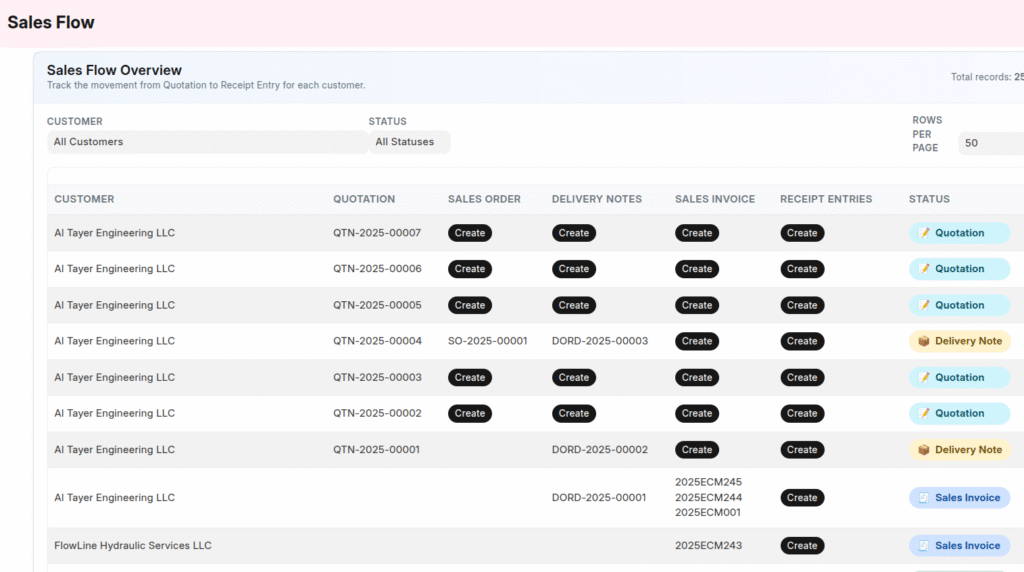
The Sales Flow dashboard in DIGITZ ERP provides a complete end-to-end visualisation of how each customer transaction progresses through the sales cycle.
It brings all related documents—Quotation, Sales Order, Delivery Note, Sales Invoice, and Receipt Entry—into a single, easy-to-navigate screen.
This allows organisations to:
- Track the progress of every transaction
- Identify pending stages instantly
- Create the next document without searching
- View all completed stages with direct links
- Maintain a clean and organised sales workflow
The overview serves as a central control panel for monitoring and completing the entire sales process efficiently.
Purpose of the Sales Flow
Managing multi-stage sales workflows requires visibility and control. Any missing or delayed stage may impact delivery, invoicing, and cash flow.
The Sales Flow dashboard supports organisations by providing:
| What it provides | Why it matters |
|---|---|
| Full visibility across stages | Avoids missing documents |
| Clear indication of pending steps | Helps the sales team act quickly |
| One-click creation of next step | Saves time and prevents errors |
| Backward tracking of completed stages | Useful for clarifications and audits |
Standard Sales Workflow Covered
The dashboard reflects the most commonly followed business flow:
Quotation → Sales Order → Delivery Note → Sales Invoice → Receipt Entry
- Created stages appear as clickable links.
- Missing stages show a Create button.
- Ensures continuous and complete workflow progression.
Understanding the Sales Flow Columns
Each row represents a sales transaction.
| Column | Description |
|---|---|
| Customer | Customer associated with the flow |
| Quotation | Link or option to create |
| Sales Order | Link(s) or option to create |
| Delivery Notes | Link(s) or option to create |
| Sales Invoice | Link(s) or option to create |
| Receipt Entries | Link(s) or option to create |
| Status | Current progress in the workflow |
Instant Creation of the Next Step
DIGITZ ERP automatically identifies the next pending stage and shows a single action button.
| Progress so far | Button shown |
|---|---|
| Quotation created | Create Sales Order |
| Sales Order created | Create Delivery Note |
| Delivery Note created | Create Sales Invoice |
| Sales Invoice created | Create Receipt Entry |
| Receipt Entry created | No further action |
This ensures the sales cycle is completed without missing or skipping important stages.
Backward Tracking
All completed documents appear as clickable links such as:
- Quotation
- Sales Order
- Delivery Note
- Sales Invoice
- Receipt Entry
Users can instantly trace the flow back to any previous document.
Status Display
The final column summarises the progress of each transaction:
| Status | Meaning |
|---|---|
| Pending | No documents created yet |
| Quotation | Quotation completed |
| Sales Order | Sales Order completed |
| Delivery Note | Delivery Note completed |
| Sales Invoice | Invoice generated |
| Receipt Entry | Payment recorded |
| Completed | All stages completed |
Filters and Pagination
The dashboard includes filters and navigation controls to manage large volumes of data:
| Feature | Purpose |
|---|---|
| Customer Filter | Filter transactions by customer |
| Status Filter | Filter by workflow stage |
| Rows per Page | Choose 25 / 50 / 100 / 500 / 2000 |
| Pagination | Navigate through multiple pages |
Benefits
| Advantage | Impact |
|---|---|
| Full visibility of sales cycle | Eliminates document leakage |
| Pending stage identification | Helps users act immediately |
| One-click next document | Faster workflow and reduced manual steps |
| Backward traceability | Helpful during customer queries & audits |
| Clean, professional interface | Improves usability |
Conclusion
The Sales Flow dashboard in DIGITZ ERP provides an intuitive and powerful way to track and complete the entire sales cycle.
By ensuring every transaction moves smoothly from Quotation to Payment, it enhances operational efficiency, improves follow-up, and supports timely decision-making at all levels.
Supplier Calendar
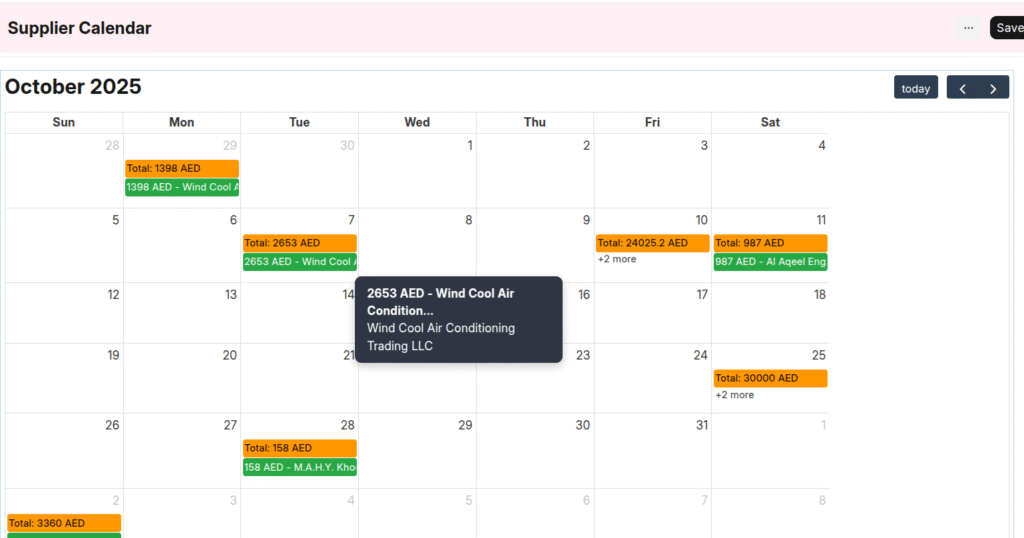
Overview
The Supplier Calendar in DIGITZ ERP provides a visual, date-based overview of all pending supplier payments.
It displays the amounts payable to suppliers on the respective due dates, helping procurement and finance teams plan outgoing payments more efficiently.
The calendar gives a clear monthly snapshot of upcoming dues, ensuring no supplier payment is overlooked.
Purpose
The Supplier Calendar enables teams to:
- Track supplier dues at a glance
- Plan outgoing payments in advance
- Improve supplier relationship management
- Avoid late payments and penalties
- Support cashflow planning
It acts as a visual payment reminder tool integrated directly into Accounts Payable.
How It Works
The calendar reads all pending supplier invoices based on their due dates.
For each calendar date, it shows:
- Supplier Name
- Pending Amount
This provides a clear day-wise breakdown of which suppliers need to be paid and how much is due on that date.
The calendar updates automatically whenever a Purchase Invoice is paid, adjusted, or submitted.
Key Features
1. Date-Based Supplier Dues View
Every calendar day shows all suppliers who have an outstanding balance due on that specific date.
2. Simple & Clear Display
Each entry displays only:
- Supplier Name
- Outstanding Amount
This keeps the view clean and easy to interpret.
3. Real-Time Updates
Any payment entry, partial payment, or adjustment updates the calendar instantly.
4. Easy Month Navigation
Users can move between months to view:
- Upcoming supplier payments
- Overdue amounts
- Monthly payable projections
Benefits
- Improves planning of supplier payments
- Enhances cashflow control
- Ensures timely settlement of supplier invoices
- Avoids missing due dates or late payment charges
- Strengthens vendor relations through timely payments
Customer Calendar
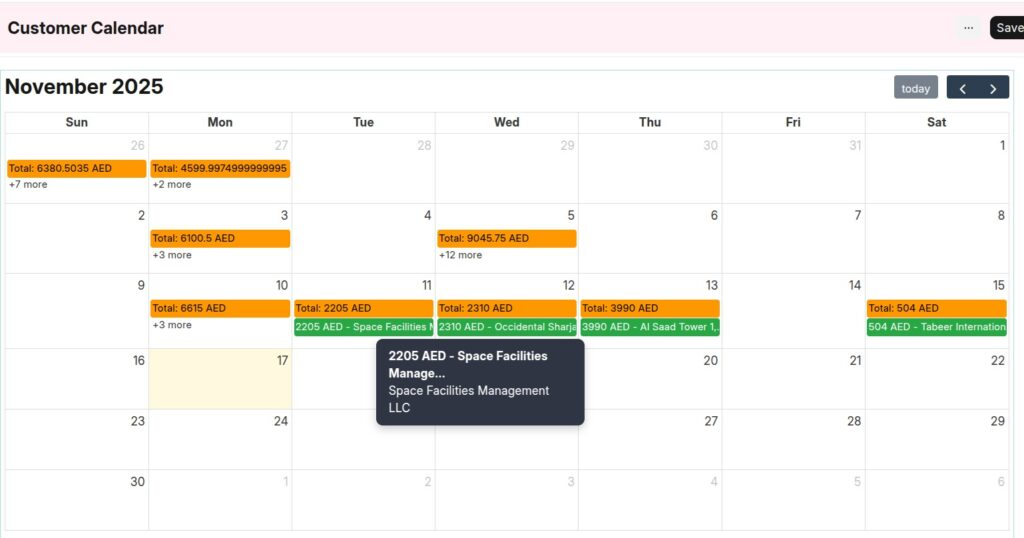
Overview
The Customer Calendar in DIGITZ ERP provides a simple, date-based view of all pending customer payments.
It visually displays the outstanding amounts on the days they are due, helping the team quickly identify when customer payments are expected.
The purpose of the calendar is to give an easy, visual representation of receivables in a month-by-month format.
Purpose
To offer a quick, intuitive way to track pending customer payments based on due dates.
The calendar helps:
- Improve follow-up timing
- Enhance collection planning
- Provide better visibility on customer dues
- Reduce missed follow-up opportunities
How It Works
The calendar reads all pending invoices for customers and shows entries on the corresponding due dates.
For each due date, the calendar displays:
- Customer Name
- Pending Amount
This allows users to quickly see which customers owe payments on that day.
As payments are posted or cleared, the calendar updates automatically to reflect the changes.
Key Features
1. Date-Based Pending Payment View
Each calendar day shows the list of customers who have payments due on that date.
2. Minimal and Clear Display
The calendar shows only:
- Customer Name
- Outstanding Amount
No extra clutter or details — giving a crisp and easy-to-understand view.
3. Real-Time Updates
Whenever a payment entry is submitted or an invoice is settled, the calendar refreshes automatically.
4. Easy Navigation
Users can switch between months to review:
- Upcoming payments
- Past dues
- Expected receivables
Benefits
- Clear visibility of day-wise receivables
- Helps teams plan follow-ups
- Ensures no customer due is missed
- Improves collection efficiency
- Assists in cashflow awareness
Period Closing Voucher
The Period Closing Voucher in DIGITZ ERP helps organisations formally close their accounts for a defined accounting period — typically quarterly, half-yearly, or yearly as per company policy.
During closing, the system settles all Profit & Loss balances into the Balance Sheet, ensuring accurate financial reporting and preventing further changes to the closed period.
Purpose of Period Closing
Period closing ensures the company's financial position for the selected period is finalised and protected from accidental or unauthorised modifications.
| What it Provides | Why it Matters |
|---|---|
| Transfers P&L balance into Balance Sheet | Finalises financial results for the period |
| Locks the accounting period | Prevents back-dated voucher edits or submissions |
| Strengthens financial accuracy | Supports audit and compliance requirements |
| Requires tax and reconciliation checks | Ensures correct tax reporting and filing |
How Period Closing Works
1. Select the Period
The user selects a From Date and To Date, defining the accounting period being closed.
2. Review and Finalise All Transactions
Before closing the period, the organisation must manually ensure the following tasks are completed:
Manual Tax Reconciliation (Required)
- Reconcile VAT/GST collected & paid
- Verify tax ledgers (input tax, output tax, adjustments)
- Confirm that taxable transactions match the tax summary
- Ensure no missing or incorrect tax entries exist
- Reconcile with external systems or portals if required (e.g., FTA Portal – UAE)
This manual tax reconciliation must be completed before the Period Closing Voucher is submitted.
General Reconciliation Checks
- Bank reconciliation
- Vendor & customer reconciliation
- Ledger matching
- Final review of journals and adjustments
3. System Settlement of Profit & Loss
Once submitted, DIGITZ ERP:
- Identifies all Profit & Loss accounts
- Calculates net profit or loss for the selected period
- Automatically transfers the value to the chosen Balance Sheet account (e.g., Retained Earnings)
4. Locking the Period
After submission:
- No new transactions can be posted in the closed period
- No edits or cancellations are allowed
- Ensures historical accuracy and audit compliance
Why Tax Reconciliation Must Be Manual
DIGITZ ERP intentionally does not automate tax reconciliation during period closing because:
- Tax computations may require cross-checking with government portals
- Some adjustments may be handled outside the ERP
- Tax filing rules vary between countries and reporting periods
- Manual review ensures accuracy and prevents incorrect tax reporting
This makes the process compliant, safe, and audit-ready.
Typical Use Cases
- Quarterly closing for management performance review
- Half-year and annual closing for audit and financial reporting
- Preparing books before statutory tax filing
- Locking historical data to maintain consistency
Future Enhancements (Planned)
- Taxation Closing (Future Enhancement) — Automated tax settlement and tax-period computations.
- Voucher Edit Locking (Future Enhancement) — Advanced locking rules for vouchers within closed periods.
- Extended Compliance Tools (Future Enhancement) — Automated reconciliation aids for tax and financial audits.
Stock Module Overview
The Stock Module in DIGITZ ERP maintains the item masters, warehouses, units, and price lists used across the system, and records every movement of goods through a single Stock Ledger.
Stock is valued on a moving average basis. Each ledger row stores the quantity in and out, the incoming or outgoing rate, and the resulting Balance Qty, Balance Value, and Valuation Rate for that item in that warehouse — so the stock position and its value are always available at any point in time.
The ledger is written by both the stock documents and the trading documents: Purchase Receipt, Purchase Invoice, Purchase Return, Delivery Note, Sales Invoice, Sales Return, Stock Transfer, Stock Entry, Material Issue, and Stock Reconciliation. Physical movement and financial posting therefore stay aligned without separate data entry.
Because documents can be recorded with a back date, the module also maintains a reposting mechanism. When an entry is posted earlier than existing movements, the affected ledger rows are recalculated forward in time and the item's stock balance and cost of goods sold are corrected.
Only items with Maintain Stock enabled generate stock ledger entries. Service, labour, and fixed asset items are excluded from stock movement while still participating in buying and selling documents.
Item
The Item master in DIGITZ ERP holds a single definition of everything the system needs in order to buy, sell, store, and value a product or a service.
Purpose
To maintain one authoritative record per item — its identity, unit of measure, grouping, tax treatment, expense account, and prices — which every transaction across the system refers to.
How It Works
Items are identified by Item Code. When Auto Generate Item Code is enabled on the Company, the code is generated from the Short Code of the selected Item Group (producing codes such as ABC-000001); if the item group has no short code, the series IT-###### is used instead.
Each item carries a Base Unit, which is the unit the stock ledger is maintained in. Further units can be listed in the Units table with a conversion factor against the base unit — the base unit itself is always added automatically with a conversion factor of 1.
The Item Type determines how the item behaves: Product, Non Stock, Service, Labour, Material, Fixed Asset, BOQ Product, or BOM Product. Maintain Stock controls whether the item produces stock ledger entries; for a Fixed Asset item it is switched off automatically, since stock is not maintained for assets.
Standard Selling Price and Standard Buying Price entered on the item are written through to the Standard Selling and Standard Buying price lists as Item Price records every time the item is saved — created when absent, and updated when the rate has changed.
Key Fields
- Item Code - Unique identifier for the item, generated automatically when auto-generation is enabled on the Company.
- Item Name - Descriptive name of the item.
- Base Unit - The unit in which stock is maintained for the item.
- Item Group - Classification of the item; also supplies the default expense account and the short code used for automatic coding.
- Brand - Optional brand the item belongs to.
- Tax - Tax applicable to the item, along with Tax Not Applicable for exempt items.
- Item Type - Determines whether the item is a product, service, labour, material, fixed asset, or BOQ/BOM product.
- Maintain Stock - Determines whether the item generates stock ledger entries.
- Default Expense Account - The account charged when the item is expensed.
- Units - Table of alternate units with their conversion factors against the base unit.
- Customer Prices / Supplier Prices - Party-specific rates for the item.
- Stock Balance (Base Unit), Stock Value, Valuation Rate - Read-only figures maintained by the stock posting and reposting routines.
Validations
- The Base Unit cannot be changed once stock ledger entries exist for the item in a different unit.
- A Service item cannot use a Cost of Goods Sold account as its Default Expense Account.
- The Company must have a Default Product Expense Account configured before an item can be saved.
- When no description is entered, the item name is used as the description.
Item Group
The Item Group in DIGITZ ERP classifies items and supplies defaults that are applied when items are created.
Purpose
To organise the item master into meaningful categories and to hold the accounting and coding defaults shared by all items in that category.
How It Works
Each item is linked to an item group. The group can carry a Default Expense Account, which is used as the expense head for items in the group, and a Short Code, which drives automatic item code generation when the Company has Auto Generate Item Code enabled.
Item groups are also used as a reference type for budgeting, so a budget can be set against a group rather than an individual item, and as a grouping dimension in the stock and purchase analysis reports.
Key Fields
- Item Group Name - Name of the group.
- Short Code - Prefix used when generating item codes automatically.
- Default Expense Account - Expense account applied to items in this group.
- Description - Optional descriptive text.
- Image - Optional image for the group.
Unit and Unit Conversion
Units in DIGITZ ERP allow an item to be transacted in a unit different from the one it is stocked in, while the stock ledger is always maintained in a single consistent unit.
Purpose
To let users buy, sell, and move goods in whichever unit is practical for the transaction, without losing the ability to value and report stock in one common unit.
How It Works
Every item has a Base Unit, and the stock ledger is always kept in that unit. Alternate units are listed in the item's Units table together with a Conversion Factor expressing how many base units one alternate unit represents. The base unit is always present with a conversion factor of 1.
When a unit other than the base unit is selected on a transaction line, the system converts the entered quantity and rate and stores both forms on the row — Qty and Rate as entered, and Qty In Base Unit and Rate In Base Unit as posted. The Unit Conversion Details field records the conversion that was applied, so the line remains auditable.
Because the ledger is written in base units, all stock reports, valuation, and balances remain directly comparable regardless of the unit used at entry.
Key Fields
- Unit - The unit selected on the transaction line.
- Conversion Factor - Number of base units represented by one of the selected units.
- Qty In Base Unit - Quantity converted into the item's base unit, used for all stock postings.
- Rate In Base Unit - Rate converted into the item's base unit.
- Unit Conversion Details - Read-only record of the conversion applied to the line.
Warehouse
The Warehouse in DIGITZ ERP represents a physical or logical location at which stock is held.
Purpose
To maintain stock balances and valuation separately for each location, so that quantity and value are known per warehouse and not only in total.
How It Works
Every stock ledger entry is recorded against a warehouse, and balances are therefore maintained per item and per warehouse. A warehouse can be associated with a Company and optionally with a Project, which allows stock held for a particular project to be tracked separately.
The Company's Default Warehouse setting supplies the warehouse used when a transaction does not specify one. A warehouse that is no longer in use can be marked Disabled rather than deleted, so historical ledger entries remain intact.
Key Fields
- Warehouse Name - Name of the location.
- Company - Company the warehouse belongs to.
- Project - Optional project the warehouse is dedicated to.
- Disabled - Marks a warehouse as no longer available for new transactions.
Price List and Item Price
Price Lists and Item Prices in DIGITZ ERP hold the rates used when items are bought and sold.
Purpose
To maintain rates centrally so that buying and selling documents pick up the correct price automatically, and to keep a history of how a rate has changed over time.
How It Works
A Price List is marked as Is Buying, Is Selling, or both. The application ships with Standard Buying and Standard Selling, which are the defaults referenced by the Company configuration.
An Item Price links an item to a price list with a Rate, a Unit, and a Currency. Validity can be limited with From Date and To Date; a record without dates is open-ended and applies until superseded.
When the Standard Selling Price or Standard Buying Price is set on the Item, the corresponding Item Price record in the standard price list is created or updated automatically on save. The reverse can be suppressed on an individual Item Price record with Do Not Update Price In Item.
The Company settings Update price list price with sales invoice and Update price list price with purchase invoice determine whether transaction rates flow back into the price list.
Validations
- Two Item Price records for the same item and price list cannot have overlapping date ranges.
- Only one open-ended Item Price record may exist for the same item and price list.
Key Fields
- Item - The item being priced.
- Price List - The list the rate belongs to.
- Rate - The price of the item in the selected unit and currency.
- Unit - Unit the rate applies to.
- Currency - Currency of the rate.
- From Date / To Date - Optional validity period for the rate.
- Is Selling / Is Buying - Inherited from the price list to indicate where the rate applies.
Stock Ledger
The Stock Ledger in DIGITZ ERP is the single record of every stock movement and the basis of all stock valuation and reporting.
Purpose
To hold one row per item movement per warehouse, carrying both the quantity effect and the value effect, so that the stock position and its valuation can be reconstructed for any date and time.
How It Works
Each ledger row records Qty In or Qty Out together with the Incoming Rate or Outgoing Rate, and the resulting Balance Qty, Balance Value, and Valuation Rate for that item in that warehouse. Valuation follows the moving average method, so an inward movement at a new rate re-averages the valuation rate applied to subsequent issues.
Every row is stamped with its Posting Date (as a date and time), the Voucher type and Voucher No that produced it, and optionally the Cost Center, Project, and Company. The ledger is written by:
- Purchase Receipt, Purchase Invoice, and Purchase Return
- Delivery Note, Sales Invoice, and Sales Return
- Stock Transfer, Stock Entry, Material Issue, and Stock Reconciliation
Because the posting date carries a time component, documents are sequenced precisely. If a document is submitted with the same date and time as an existing voucher, the system advances the posting time by a few seconds so the ordering stays unambiguous; if it cannot find a free slot it stops the submission.
When a document is posted earlier than existing movements, the row is flagged as having later records and the reposting routine recalculates every affected row forward from that point.
Key Fields
- Item and Warehouse - The stock position the row belongs to.
- Posting Date - Date and time of the movement, used to sequence the ledger.
- Qty In / Qty Out - Quantity received into or issued from the warehouse, in base units.
- Incoming Rate / Outgoing Rate - Rate at which the quantity moved.
- Valuation Rate - Moving average rate after the movement.
- Balance Qty / Balance Value - Resulting quantity and value held.
- Change In Stock Value - Value effect of the row.
- Voucher / Voucher No - Document that produced the movement.
Material Request
The Material Request in DIGITZ ERP records an internal request for materials, either to be purchased or to be transferred between warehouses, and routes it through an approval before it can be acted upon.
Purpose
To capture what has been asked for, by whom, and by when — and to ensure that quantities are approved, and budgets respected, before any purchase or transfer takes place.
How It Works
The request is raised with a Purpose of either Purchase or Stock Transfer, a Required By date, and a target warehouse. Each line names the item, the requested Quantity, and the unit, and can carry its own required-by date, source warehouse, and project.
Each line also has a Quantity Approved, which is what the approver actually sanctions. The document cannot be submitted until it is marked Approved and at least one line carries an approved quantity. On submission the system compares approved quantities with requested quantities and sets the Status to Partially Approved when any line was approved for less than it asked for.
Where budgets are in use, the request is checked against the budget allocated to the item or its item group, valued at the line's valuation rate. If the request would take cumulative usage past the allocated amount, submission is blocked.
As purchasing proceeds, Qty Purchased on each line records how much of the approved quantity has been procured, so an outstanding position is always visible.
Key Fields
- Purpose - Whether the request results in a purchase or a stock transfer.
- Required By - Date the material is needed.
- Source Warehouse / Target Warehouse - Where the material moves from and to.
- Items - Requested items with quantity, unit, required-by date, and project.
- Quantity Approved - Quantity sanctioned by the approver for each line.
- Approved - Must be set before the document can be submitted.
- Status -
Requested,Approved,Partially Approved, orRejected. - Requested By - User who raised the request.
- Rejection Reason - Recorded when a request is turned down.
Stock Transfer
The Stock Transfer in DIGITZ ERP moves stock from one warehouse to another within the same company.
Purpose
To relocate goods between warehouses while preserving their value, so that quantities are correct at both locations and no gain or loss is created by the movement itself.
How It Works
A transfer is entered with a Source Warehouse and a Target Warehouse at document level; individual lines may override either, allowing several warehouse pairs to be handled in one document. Any line left blank inherits the document-level warehouses.
On submission the system writes two stock ledger effects for each line — an issue from the source warehouse and a receipt into the target warehouse — using the item's Qty In Base Unit so that the movement is recorded in the stocking unit regardless of the unit entered.
Before posting, the available balance at the source warehouse is checked. If no stock exists, or the balance is less than the quantity being moved, the transfer is stopped — unless the Company has Allow Negative Stock enabled.
A stock transfer moves value between locations but does not change the total value of stock held, so it produces no general ledger posting. Where the transfer is dated earlier than existing movements, a Stock Recalculate Voucher is raised for both the source and the target so the affected ledger rows are recalculated forward.
Validations
- The same combination of item, source warehouse, target warehouse, and unit cannot appear twice in one document.
- Sufficient quantity must exist at the source warehouse unless negative stock is allowed.
- A voucher cannot share its posting date and time with an existing transfer; the system advances the time automatically, and stops if no free slot is found.
Key Fields
- Source Warehouse / Target Warehouse - Document-level default locations for the movement.
- Items - Items moved, with quantity, unit, rate, and per-line warehouses.
- Qty In Base Unit - Quantity actually posted to the ledger.
- Date / Posting Time - When the movement takes effect, editable with Edit Posting Date And Time.
- Remarks - Free text describing the reason for the transfer.
Material Issue
The Material Issue in DIGITZ ERP records the consumption of stock out of a warehouse into a project or a subcontracting job.
Purpose
To take materials out of stock and charge their value to work in progress, so that project and job costs reflect the materials actually consumed.
How It Works
An issue is raised with a Purpose of either Project Consumption or Sub Contracting, a From Warehouse, and a Work In Progress Account. Lines can be linked to a Work Order, Project, BOQ, BOQ Execution, or a Sub Contracting Order Item, so the consumption is attributable to the job it belongs to.
On submission the system issues each line from the warehouse at the item's current valuation and, for the total value issued, posts a general ledger entry that credits the Inventory account and debits the Work In Progress account. Stock value therefore moves out of inventory and into work in progress rather than being written off.
Availability is checked before posting: if no stock exists, or the balance is short of the quantity being issued, the document is stopped unless the Company allows negative stock.
Validations
- The rate on an issued line cannot be zero.
- Sufficient quantity must exist in the issuing warehouse unless negative stock is allowed.
- A voucher cannot share its posting date and time with an existing issue.
Key Fields
- Purpose -
Project ConsumptionorSub Contracting. - From Warehouse - Warehouse the materials are issued from.
- Work In Progress Account - Account debited with the value of materials issued.
- Project / Work Order / BOQ / BOQ Execution - Job the consumption is charged to.
- Sub Contracting Order - Order the materials are issued against, when issuing for subcontracting.
- Items - Items issued with quantity, unit, rate, and the resulting net amount.
- Net Total - Total value issued, and the amount posted to work in progress.
Stock Entry
The Stock Entry in DIGITZ ERP brings materials back into a warehouse from a subcontracting job.
Purpose
To receive materials returned by a subcontractor against the Sub Contracting Order and Material Issue they were issued under, so that unconsumed quantities re-enter stock and the job's material position stays accurate.
How It Works
The document is raised with the Purpose Sub Contracting Material Receipt and is linked to the Sub Contracting Order and the Material Issue it reverses. Each line references the originating Sub Contracting Order Item or Material Issue Item, and shows Qty In The Order and Qty Issued alongside the quantity being received, so the receipt can be checked against what was issued.
On submission the received quantities are written into the stock ledger for the receiving warehouse, and the linked subcontracting order's status is updated to reflect the materials returned.
Key Fields
- Purpose -
Sub Contracting Material Receipt. - Sub Contracting Order - The order the materials were issued against.
- Material Issue - The issue document being received back.
- Warehouse - Warehouse receiving the returned materials.
- Items - Items received, each linked to the order or issue line it came from.
- Qty In The Order / Qty Issued - Reference quantities shown for comparison against the receipt.
Stock Reconciliation
The Stock Reconciliation in DIGITZ ERP sets the quantity and valuation rate of items in a warehouse to a stated figure, and posts the resulting difference to the accounts.
Purpose
To bring the system in line with a physical count, and to load opening stock when a company starts using the application.
How It Works
The document is raised with a Purpose of either Stock Reconciliation or Opening Stock. Unlike a transfer or an issue, the quantity entered on each line is not a movement but the resulting balance — the system compares it with the balance already on record for that item and warehouse at the posting date and time, and derives the quantity in or out needed to reach it. The Valuation Rate entered on the line becomes the rate at which the resulting balance is held.
The value effect is posted to the general ledger. For the Stock Reconciliation purpose the difference is booked between the Company's Inventory account and its Stock Adjustment account — a rise in value debits inventory and credits stock adjustment, and a fall reverses the pair. For the Opening Stock purpose the opening value is posted against the opening balance accounts instead.
Validations
- A reconciliation cannot be posted for an item that already has a stock entry dated after the reconciliation's posting date — the position must be set before later movements, not behind them.
- The same item and unit cannot be listed twice in one document.
- A voucher cannot share its posting date and time with an existing reconciliation.
Key Fields
- Purpose -
Stock Reconciliationfor a physical count adjustment, orOpening Stockfor initial balances. - Warehouse - Warehouse being reconciled.
- Items - Items with the counted Qty, the Valuation Rate to hold them at, and the unit.
- Stock Adjustment Account - Account carrying the value difference.
- Default Cost Center - Cost center the adjustment is charged to.
- Net Total - Total value of the reconciled position.
Item to Item Transfer
The Item to Item Transfer in DIGITZ ERP moves every reference from one item code to another across the system.
Purpose
To correct the situation where the same physical item has been created twice, by consolidating all history onto a single item code instead of leaving transactions split between duplicates.
How It Works
The document names a From Item and a To Item. On submission the system rewrites the item reference — along with the item name and display name — in every table that carries it, so past and present documents all point at the surviving code.
The whole operation runs inside a database savepoint. If any part of the rewrite fails, everything is rolled back and no partial change is left behind. A summary of the tables touched and the number of rows updated is reported on completion and stored on the document.
Restrictions
- Only the Administrator may execute an Item to Item Transfer.
- Both items must exist, and the From Item and To Item cannot be the same.
Key Fields
- From Item - The item code being retired.
- To Item - The item code that will carry the consolidated history.
- From Item Name / To Item Name - Names shown for confirmation before submission.
Stock Reposting and Recalculation
Stock Reposting in DIGITZ ERP keeps valuation correct when documents are entered out of chronological order.
Purpose
Under moving average valuation, every movement depends on the ones before it. When a document is posted with a back date, all later movements for that item were calculated without it. Reposting recalculates those later rows so balances, valuation rates, and cost of goods sold end up as though the entry had always been there.
How It Works
When a stock document is submitted or cancelled with a posting date earlier than existing movements, the system raises a Stock Recalculate Voucher recording which voucher triggered it, its date and time, and a status of Not Started. Stock Transfers raise one for the source warehouse and one for the target.
The Stock Repost settings record how far reposting has progressed — the Last Processed Stock Ledger, its Last Processed Posting Date, and a Posting Status which is set to In Process while a run is under way so that two runs cannot overlap.
A scheduled job runs hourly and works through the outstanding ledger rows: duplicate ledger entries are cleaned, each affected row is recalculated forward in time, and a Stock Repost Detail record is written for the rows processed. Once the ledger is rebuilt, the item's Stock Balance, Stock Value, and Valuation Rate are refreshed on the Item master, and the cost of goods sold on the affected Delivery Notes, Sales Invoices, and Sales Returns is updated to the corrected valuation.
Reposting can also be triggered manually for all items or for a single item when a specific correction is needed.
Key Fields
- Stock Recalculate Voucher - Raised per triggering document, carrying the voucher, its date and time, and processing status.
- Last Processed Stock Ledger - The point reposting has reached.
- Posting Status - Guards against overlapping reposting runs.
- Stock Repost Detail - Log of the ledger rows processed in a run.
Stock Reports
The Stock Reports in DIGITZ ERP present the stock ledger from several angles — as a movement trail, as a closing position, and as a period summary.
1. Stock Ledger Report
The full movement trail. For each item it lists every voucher in date order with the Voucher Type, Voucher No, Warehouse, Opening Qty, Qty In and Incoming Rate, Qty Out and Outgoing Rate, the resulting Valuation Rate, and the running balance. This is the report to use when a balance or a valuation needs to be traced back to the documents that produced it.
2. Stock Ledger Summary Report
The same movements condensed — voucher, date, warehouse, opening quantity, quantity in and out, and closing balance — without the rate detail, for a quicker read of what moved.
3. Stock Balance Register
The closing position rather than the movements: Stock Qty, Unit, Valuation Rate, and Stock Value per item and warehouse, with the Total Stock Value across the selection. This is the report that reconciles to the inventory account.
4. Stock Movement Report
Movement of stock over a period, drawn from the stock ledger, for reviewing activity rather than balances.
5. Daily Stock Report
A day's activity broken down by the reason it occurred — Opening Qty, Stock Recon Qty, Purchase Qty, Purchase Return Qty, Sales Qty, Sales Return Qty, Transfer In Qty, Transfer Out Qty, and the closing Balance Qty. It shows not just how much stock changed but which process changed it.
6. Daily Stock Report Summary
The same information condensed to Opening Qty, Stock Recon, Qty In, Qty Out, and Balance Qty, available in a consolidated form or broken down date by date.
7. Project Stock Ledger Report
The movement trail restricted to a project, showing the same voucher-level detail with the Project alongside — used where materials are held and consumed against specific projects.
Buying Module Overview
The Buying Module in DIGITZ ERP covers procurement from the moment a requirement is raised to the moment the supplier bill is recorded and, where necessary, goods are sent back.
The cycle runs Material Request → Purchase Order → Purchase Receipt → Purchase Invoice, with Purchase Return handling goods returned to the supplier. Each stage carries its quantities and values forward into the next, and each records how much of the preceding document has been consumed — so the outstanding position is visible at every step.
The stages divide cleanly by what they affect:
- Purchase Order is a commitment. It creates neither stock nor accounting entries; it records what was ordered and tracks how much has since been purchased against it.
- Purchase Receipt handles the physical movement. It brings goods into the warehouse and recognises their value as received but not yet billed.
- Purchase Invoice handles the financial posting — supplier liability, expense, and tax. It is documented under the Accounting module; see Purchase Invoice.
- Purchase Return reverses both, sending goods back and reducing the amount payable.
Buying also participates in wider controls. Budgets are checked when a Purchase Order or Purchase Receipt is saved, so an item or item group cannot be committed past its allocation. Where a Project is set, the purchase cost is accumulated on the project. Where an item is a Fixed Asset, receiving it creates the asset record automatically.
Supplier
The Supplier in DIGITZ ERP is the party master for everything the company buys.
Purpose
To hold one record per supplier — identity, contact details, tax registration, credit arrangement, and default pricing terms — which every buying document draws from.
How It Works
Suppliers are identified by Supplier Name, which is also the record's name. Each supplier carries a Default Price List, from which buying documents pick up their rates, and may carry a Default Terms record; where Use Default Supplier Terms From Company Settings is set, the company-level terms are applied instead.
The credit arrangement is held on the supplier as Credit Days and a Credit Amount Limit, and flows into the credit fields on purchase documents.
For tax, the supplier's TRN No is recorded and carried onto purchase documents as the tax identifier. Tax Not Applicable marks a supplier whose transactions are outside the tax regime.
Suppliers are classified by Supplier Group — a simple master of a name and a disabled flag — which is used for grouping and analysis. A supplier no longer traded with can be marked Disabled rather than deleted, so historical documents remain intact.
Key Fields
- Supplier Name - Name and identifier of the supplier.
- Supplier Group - Classification the supplier belongs to.
- Default Price List - Price list buying documents take rates from.
- Credit Days / Credit Amount Limit - The credit arrangement agreed with the supplier.
- TRN No - Tax registration number, carried onto purchase documents.
- Tax Not Applicable - Marks the supplier as outside the tax regime.
- Address, City, State, Emirate, Country - Location details, also assembled into a Full Address.
- Contact Person, Designation, Contact Mobile No, Phone No, Mobile No, Email - Contact details.
- Default Terms / Use Default Supplier Terms - Terms and conditions applied to the supplier's documents.
- Bank Details - Free-text bank information used when paying the supplier.
- Disabled - Retires the supplier without removing history.
Purchase Order
The Purchase Order in DIGITZ ERP records a commitment to buy goods or services from a supplier.
Purpose
To state what has been ordered, at what price, and on what terms — and to track how much of that order has since been received or invoiced, so the pending position is always known.
How It Works
An order is raised against a Supplier for a Warehouse, with rates drawn from the selected Price List. Each line records the item, quantity, unit, rate, applicable Tax, and any line discount; the totals section carries the gross total, line-item discounts, tax total, additional discount, round off, and rounded total, with the rounded total also written out in words.
The order records how it is to be settled. Credit Purchase with Credit Days and Payment Terms marks it as payable later; otherwise a Payment Mode must be chosen and the full rounded total is treated as paid.
A Purchase Order is a commitment only — it produces no stock ledger entry and no accounting entry. Its effect is tracked through Qty Purchased on each line, which is maintained as purchase receipts and invoices are raised against the order. From those quantities the order's Status is derived:
- Pending - nothing has been purchased against the order yet.
- Partial - at least one line has been purchased for less than it ordered.
- Completed - every line has been fully purchased.
Where a line has been purchased for more than was ordered, the order is still marked as completed but an excess-allocation warning is raised.
An order may be raised from an approved Material Request, in which case each line keeps a reference back to the request line and updates that line's purchased quantity as the order is saved, cancelled, or deleted. Where a Project is set, the project's purchase cost is updated from the gross totals of its submitted orders. The For Sub Contracting flag marks an order raised for subcontracted work.
Validations
- A Payment Mode must be selected when the order is not a credit purchase.
- The same item cannot appear in more than one row with the same display name.
- Each item is checked against the budget allocated to it or to its item group; if the order would take cumulative usage past the allocation, submission is blocked.
- A voucher cannot share its posting date and time with an existing Purchase Order; the system advances the posting time automatically and stops if no free slot is found.
Key Fields
- Supplier - Party the order is placed with, along with the supplier address and TRN.
- Warehouse - Location the goods are expected into.
- Price List and Rate Includes Tax - How rates are sourced and whether they are tax-inclusive.
- Credit Purchase / Credit Days / Payment Terms / Payment Mode - The settlement arrangement.
- Items - Ordered items with quantity, unit, rate, tax, discount, and cost center.
- Qty Purchased - Quantity of each line already purchased against the order.
- Material Request - The approved request the order was raised from.
- Project / Default Cost Center - Costing dimensions carried onto downstream documents.
- For Sub Contracting - Marks the order as raised for subcontracted work.
- Status -
Pending,Partial, orCompleted, derived from purchased quantities. - Terms / Terms and Conditions - Contractual text printed with the order.
Purchase Receipt
The Purchase Receipt in DIGITZ ERP records the physical receipt of goods from a supplier into a warehouse.
Purpose
To bring goods into stock at the point they are received, and to recognise their value as received but not yet billed — so that the stock position is correct even before the supplier's invoice arrives.
How It Works
A receipt is raised against a Supplier and a Warehouse, and may be generated from a Purchase Order, in which case the supplier, terms, totals, and pending item lines are carried across.
On submission the receipt does two things:
Stock. Each line is received into the warehouse at its rate, written to the stock ledger in the item's base unit. Where the receipt is dated earlier than existing movements for an item, a Stock Recalculate Voucher is raised so the later ledger rows are recalculated forward.
Accounts. For the value of goods excluding tax, the receipt credits the Stock Received But Not Billed account and debits the Inventory account. Tax and the supplier liability are not posted here — they belong to the Purchase Invoice, which reverses the received-but-not-billed balance when the bill is recorded.
Where a received item is a Fixed Asset, an Asset record is created automatically from the line — carrying the item, asset category, gross value, and posting date, and placed at the company's default asset location. If the company has no default asset location configured, a Default Asset Location is created and linked to the company.
The receipt tracks its own billing state through Status: it is created as To Bill, and moves to Billed when a Purchase Invoice is raised against it — returning to To Bill if that invoice is cancelled. A separate Posting Status of Pending, Started, or Posted records how far the receipt's own stock and ledger postings have progressed.
As quantities are received, Qty Purchased on the originating Purchase Order lines is updated and the order's status is re-derived.
Validations
- Each item is checked against the budget allocated to it or to its item group.
- A voucher cannot share its posting date and time with an existing receipt.
Key Fields
- Supplier and Supplier Inv No / Supplier Inv Date - The party and their reference for the delivery.
- Purchase Order - The order the receipt is raised against.
- Warehouse - Location the goods are received into.
- Items - Received items with quantity, unit, rate, tax, and discount.
- Status -
To Billuntil a Purchase Invoice is raised, thenBilled. - Posting Status - Progress of the receipt's stock and ledger postings.
- Payment Schedule - Planned settlement dates and amounts for the receipt.
- Project / Default Cost Center - Costing dimensions for the receipt.
- Update Rates In Price List - Writes the received rates back to the price list.
Purchase Return
The Purchase Return in DIGITZ ERP records goods sent back to a supplier and reduces the amount payable accordingly.
Purpose
To take returned goods out of stock and reverse their financial effect — reducing the supplier liability, the inventory value, and the input tax originally claimed.
How It Works
A return is raised against a Supplier from a Warehouse, and its lines reference the original Purchase Invoice line being returned. The Invoices table records which invoices the return is set against.
On submission the return issues the goods out of the warehouse and posts the reversal to the general ledger:
- The Accounts Payable account is debited with the rounded total, reducing what is owed to the supplier.
- The Inventory account is credited with the value excluding tax.
- The Tax account is credited with the tax total, reversing the input tax.
- Any round off is posted to the round off account.
Where the return is not a credit purchase, payment postings are made as well, so a return against a cash purchase settles immediately rather than sitting on the payable.
If the return carries a Payment Schedule, the corresponding schedule entries are rebuilt against the return, replacing any that existed before.
Validations
- The quantity returned cannot exceed what remains available on the original purchase line. The check is cumulative — all other returns already raised against that line are counted, so a line cannot be over-returned across several documents.
- Stock must exist in the warehouse and be sufficient for the quantity being returned, unless the Company has Allow Negative Stock enabled.
Key Fields
- Supplier - Party the goods are returned to.
- Warehouse - Location the goods are issued from.
- Items - Returned items with quantity, unit, rate, tax, and the reference to the original purchase line.
- Invoices - The purchase invoices the return is set against.
- Credit Purchase - Determines whether the return reduces the payable or settles immediately.
- Payment Schedule - Rebuilt against the return where settlement is scheduled.
- Posting Status - Progress of the return's stock and ledger postings.
- Project / Default Cost Center - Costing dimensions for the return.
Buying Document Flow
The buying documents in DIGITZ ERP are connected by rules that decide which document may be raised from which, and what is still outstanding.
Material Request to Purchase Order
An approved Material Request with the purpose Purchase can be turned into a Purchase Order. Only lines with an approved quantity that has not yet been fully ordered are carried over, and each order line keeps a reference back to the request line so the request's purchased quantity stays current.
Purchase Order onward — two routes, not both
From a submitted Purchase Order the goods can be recorded either through a Purchase Receipt first, or straight onto a Purchase Invoice. The system enforces that only one route is taken for a given order:
- A Purchase Receipt cannot be created when a submitted Purchase Invoice already references the order without a receipt.
- A Purchase Invoice cannot be created when the order is already linked to a Purchase Receipt — the invoice must be raised from that receipt instead.
- The Purchase Order must be submitted before an invoice can be created from it.
- Creation stops if the order has no pending items left, and if any line has a conversion factor of zero or less.
Use the receipt route when goods arrive before the bill; use the direct invoice route when the bill accompanies the goods.
Purchase Receipt to Purchase Invoice
A Purchase Invoice can be generated from a Purchase Receipt, carrying the supplier, warehouse, terms, dates, and lines across. On submission the receipt's status becomes Billed, and the value held in Stock Received But Not Billed is cleared into the supplier liability. Cancelling the invoice returns the receipt to To Bill.
Purchase Return
A Purchase Return is raised against Purchase Invoice lines rather than against orders or receipts, since it is the billed quantity that determines what may be returned.
What each stage affects
| Document | Stock | General Ledger |
|---|---|---|
| Purchase Order | — | — |
| Purchase Receipt | Goods in | Inventory debited, Stock Received But Not Billed credited |
| Purchase Invoice | Goods in, when raised without a receipt | Supplier liability, expense, and tax |
| Purchase Return | Goods out | Payable debited; inventory and tax reversed |
Buying Reports
The Buying Reports in DIGITZ ERP present the purchase documents as registers, as itemwise detail, and as period analysis.
Registers
Purchase Register, Purchase Order Register, and Purchase Return Register list the documents of each type over a period with their supplier, dates, and values — the document-level view of what was ordered, purchased, and returned.
Itemwise detail and summaries
Each register has an itemwise pair. The Itemwise Register reports break the documents down to their individual lines, and the Itemwise Summary Report consolidates those lines by item:
- Purchase Itemwise Register and Purchase Itemwise Summary Report
- Purchase Order Itemwise Register and Purchase Order Itemwise Summary Report
- Purchase Return Itemwise Register and Purchase Return Itemwise Summary Report
Use the register when a specific transaction must be traced, and the summary when the question is how much of an item was bought or returned in total.
Analysis
Periodic Purchase Analysis Report and Periodic Expense Analysis Report present purchases and expenses across periods for comparison rather than for tracing individual documents.
Purchase Payment Analysis Report shows purchases against what has been paid, for reviewing the settlement position with suppliers.
Projectwise Purchase Receipt Report groups received goods by project, for projects where materials are purchased and consumed against a specific job.
Buying Chart - Top Supplier Purchases ranks suppliers by purchase value, giving a quick view of where spend is concentrated.
Selling Module Overview
The Selling Module in DIGITZ ERP covers the sale of goods and services from the first quotation through to delivery, invoicing, and any goods returned.
The cycle runs Quotation → Sales Order → Delivery Note → Sales Invoice, with Sales Return handling goods taken back from the customer. Each stage carries its quantities and rates forward, and each records how much of the preceding document has been consumed — so what remains outstanding on an order is always visible.
The stages divide by what they affect:
- Quotation is an offer. It creates neither stock nor accounting entries, and must be marked Won before it can be converted.
- Sales Order is a confirmed commitment. It also posts nothing; it tracks how much of what was ordered has since been delivered or invoiced.
- Delivery Note handles the physical movement — goods leave the warehouse and their cost is recognised.
- Sales Invoice handles the financial posting — customer receivable, income, and tax. It is documented under the Accounting module; see Sales Invoice.
- Sales Return reverses both, bringing goods back into stock and reducing the receivable.
Tab Sales provides a shorter path for counter sales, producing a Sales Invoice directly.
Progress across the whole cycle can be followed on the Sales Flow dashboard, which brings every stage of a customer transaction onto one screen; see Sales Flow.
Customer
The Customer in DIGITZ ERP is the party master for everything the company sells.
Purpose
To hold one record per customer — identity, contacts, delivery locations, tax registration, credit arrangement, and default pricing — which every selling document draws from.
How It Works
Customers are identified by Customer Name. Each carries a Default Price List, from which selling documents take their rates, and may carry Default Terms; where Use Default Customer Terms is set, the company-level terms apply instead.
The credit arrangement is held as Credit Days and a Credit Amount limit, and flows into the credit fields on selling documents. The customer's Tax Id is carried onto sales documents as the tax registration.
Customers are classified by Customer Group — a name and a disabled flag — and located by Area, which is itself grouped by Emirate. A Salesman can be assigned, linking the customer to an Employee for reporting. Multiple Delivery Locations can be recorded and selected as the ship-to location on individual documents.
Where a customer originated as a lead, the Prospect field links back to the Sales Prospect record it was converted from.
Two flags affect reporting and access: Exclude From Showing In SOA keeps the customer out of statement of account output, and Disabled retires a customer without removing history.
Customer-specific pricing
Beyond the default price list, the Item master carries a Customer Prices table. When a Sales Order is submitted, the rate used for each line is written back as that customer's rate for that item, dated with the order's posting date — and an existing entry is only replaced when the new date is later. Whether these remembered rates are then applied to new documents is controlled by Use Customer Last Price in the Company settings.
Key Fields
- Customer Name - Name and identifier of the customer.
- Customer Group - Classification the customer belongs to.
- Default Price List - Price list selling documents take rates from.
- Credit Days / Credit Amount - The credit arrangement agreed with the customer.
- Tax Id - Tax registration number, carried onto sales documents.
- Delivery Locations - Ship-to locations selectable on selling documents.
- Salesman - Employee responsible for the account.
- Area, Emirate, Country, Address Line 1 and 2 - Location details, also assembled into a Full Address.
- Contact Person, Designation, Phone, Mobile No, Email - Contact details.
- Default Currency - Currency the customer is billed in.
- Prospect - The Sales Prospect this customer was converted from.
- Exclude From Showing In SOA - Omits the customer from statement of account output.
- Disabled - Retires the customer without removing history.
Quotation
The Quotation in DIGITZ ERP records a priced offer made to a customer or a prospect.
Purpose
To state what is being offered, at what price, and on what terms — and to record the outcome of the offer so that won and lost business can be analysed.
How It Works
A quotation is raised for a Customer or, through Lead From = Prospect, for a Sales Prospect that has not yet become a customer. Rates come from the selected Price List, and each line carries the item, quantity, unit, rate, tax, and any discount. The rounded total is also written out in words.
A quotation posts nothing — no stock movement and no ledger entry. It is an offer until its outcome is recorded.
The outcome is held in Status, which is Pending, Won, or Lost. A won quotation can record a Won Reason and a lost one a Lost Reason, both drawn from their own master lists so the reasons stay consistent and reportable.
A quotation must be marked Won before a Sales Order can be created from it. Attempting to convert a quotation in any other status is refused. The conversion option is only offered while the quotation has not already been used — once a Sales Order, Delivery Note, or Sales Invoice exists against it, it cannot be converted again. Where the quotation was raised for a prospect, the system first checks that a Customer exists for that prospect.
A quotation can be duplicated into a fresh quotation carrying the same customer, terms, totals, and lines — the practical way to issue a revision, alongside the Rev.No and Rev Date fields kept for print. Recurring sets of lines can be pulled in from a Quotation Items Template rather than entered by hand.
Where the company has Manual Quotation No enabled, the quotation is named by the number entered on the document rather than by the automatic series.
Key Fields
- Customer or Prospect with Lead From - Who the offer is made to.
- Status -
Pending,Won, orLost; must beWonto convert. - Won Reason / Lost Reason - The recorded outcome, from their master lists.
- Price List and Rate Includes Tax - How rates are sourced and whether they are tax-inclusive.
- Items - Offered items with quantity, unit, rate, tax, and discount.
- Quotation Item Template - A saved set of lines to populate the quotation from.
- Salesman - Employee the offer is credited to.
- Ship To Location - Delivery location selected from the customer's locations.
- Qtn Validity, Rev.No, Rev Date, Subject, Attn - Details carried onto the printed quotation.
- Terms / Terms and Conditions - Contractual text printed with the offer.
Sales Order
The Sales Order in DIGITZ ERP records a confirmed commitment to supply a customer.
Purpose
To state what the customer has ordered, at what price and on what terms, and to track how much of that order has since been delivered or invoiced.
How It Works
An order is raised for a Customer against a Warehouse, and records the customer's own purchase order through the mandatory LPO No and LPO Date. It may be created from a won Quotation, in which case the quotation is linked.
A Sales Order posts nothing — no stock movement and no ledger entry. Its effect is tracked through Qty Sold on each line, which is maintained as delivery notes and sales invoices are raised against the order. From those quantities the order's Status is derived:
- Pending - nothing has been delivered or invoiced against the order yet.
- Partial - at least one line has been supplied for less than it ordered.
- Completed - every line has been fully supplied.
Where a line has been supplied for more than was ordered, an excess-allocation warning is raised.
On submission the order also remembers its pricing: for each line, the rate is written back to the customer's entry in the item's Customer Prices table, dated with the order's posting date.
From a Sales Order the system can generate a Delivery Note or a Sales Invoice, each built only from the quantity still outstanding — the pending quantity is calculated as ordered quantity less quantity already sold. If nothing is pending, generation is refused. An order can also be duplicated into a new order carrying the same customer, terms, totals, and lines.
Key Fields
- Customer - Party the order is for, with address, tax id, and balance shown.
- LPO No / LPO Date - The customer's own purchase order reference; both required.
- Quotation - The won quotation the order was created from.
- Warehouse - Location the goods are to be supplied from.
- Items - Ordered items with quantity, unit, rate, tax, and discount.
- Qty Sold - Quantity of each line already delivered or invoiced.
- Status -
Pending,Partial, orCompleted, derived from sold quantities. - Credit Sale / Credit Days / Payment Terms / Payment Mode - The settlement arrangement.
- Salesman and Ship To Location - Attribution and delivery location.
- Default Cost Center - Costing dimension carried onto downstream documents.
Delivery Note
The Delivery Note in DIGITZ ERP records goods leaving the warehouse for a customer.
Purpose
To take goods out of stock at the point they are dispatched and recognise their cost, so that the stock position and cost of sales are correct whether or not the invoice has been raised.
How It Works
A delivery note is raised for a Customer from a Warehouse, and is usually generated from a Sales Order — carrying the customer, terms, totals, and the outstanding lines across. Because a note can draw on more than one order, the Sales Orders table is rebuilt from the line references each time the document is saved, listing every order the delivery draws on.
On submission the delivery note does two things:
Stock. Each line is issued from the warehouse and written to the stock ledger in the item's base unit, valued at the item's current moving average rate.
Accounts. For the resulting cost of goods sold, the note credits the Inventory account and debits the Cost of Goods Sold account. Revenue, receivable, and tax are not posted here — they belong to the Sales Invoice.
As quantities are delivered, Qty Sold on the originating Sales Order lines is updated and each affected order's status is re-derived. The same happens in reverse when the note is cancelled or deleted.
The Is Delivered flag records that the goods have physically reached the customer, separately from the document having been submitted.
Validations
- Stock must exist in the warehouse and be sufficient for the quantity being issued, unless the Company has Allow Negative Stock enabled.
- An item with no prior stock ledger entry must have a valuation rate on the Item master; otherwise the system stops with "Please provide a valuation rate for the item, as there is no existing purchase invoice for it."
- A voucher cannot share its posting date and time with an existing delivery note; the system advances the posting time automatically and stops if no free slot is found.
Key Fields
- Customer - Party the goods are delivered to, with address and balance.
- Warehouse - Location the goods are issued from.
- Sales Orders - The orders this delivery draws on, rebuilt from the line references.
- Items - Delivered items with quantity, unit, rate, and the reference to the order line.
- Is Delivered - Marks that the goods have reached the customer.
- LPO No / LPO Date - The customer's purchase order reference, carried from the order.
- Posting Status - Progress of the note's stock and ledger postings.
- Ship To Location and Salesman - Delivery location and attribution.
Sales Return
The Sales Return in DIGITZ ERP records goods taken back from a customer and reverses their financial effect.
Purpose
To bring returned goods back into stock and unwind the original sale — reducing the receivable, the income recognised, the output tax, and the cost of goods sold.
How It Works
A return is raised for a Customer into a Warehouse, and its lines reference the original Sales Invoice line being returned. The Invoices table records which invoices the return is set against.
On submission the return receives the goods back into the warehouse and posts the reversal to the general ledger:
- The Accounts Receivable account is credited with the rounded total, reducing what the customer owes.
- The Income account is debited with the value excluding tax.
- The Tax account is debited with the tax total, reversing the output tax.
- The Inventory account is debited and the Cost of Goods Sold account credited with the cost of the returned goods, so cost of sales is unwound at the same value it was recognised at.
- Any round off is posted to the round off account.
Where the return is not a credit sale, payment postings are made as well, so a return against a cash sale is settled immediately rather than sitting on the receivable.
The return also keeps the surrounding documents consistent: quantities on the originating Sales Invoice and Delivery Note lines are adjusted, any Receipt Schedule entries are rebuilt against the return, and the status of each affected Sales Order is re-derived.
Validations
- The quantity returned cannot exceed what remains available on the original sales line. The check is cumulative — all other returns already raised against that line are counted, so a line cannot be over-returned across several documents.
Key Fields
- Customer - Party the goods are returned from.
- Warehouse - Location the goods are received back into.
- Items - Returned items with quantity, unit, rate, and the reference to the original sales line.
- Invoices - The sales invoices the return is set against.
- Credit Sale - Determines whether the return reduces the receivable or settles immediately.
- Posting Status - Progress of the return's stock and ledger postings.
Tab Sales
Tab Sales in DIGITZ ERP is a shorter entry screen for over-the-counter sales, where the full order-to-delivery cycle is unnecessary.
Purpose
To record a sale in a single step, without raising a quotation, order, and delivery note first — while still producing the same accounting and stock effect as a normal sale.
How It Works
Tab Sales has its own entry page and is filled in like a sales document: customer, warehouse, payment mode, and lines with quantity, unit, rate, and tax.
Behind it, the document maintains a linked Sales Invoice. As the Tab Sales record is built and saved, the corresponding Sales Invoice is created or brought back into step with it. When the Tab Sales document is submitted, that linked Sales Invoice is submitted with it — and the invoice, not the Tab Sales record, is what posts to stock and to the ledger.
This means the accounting behaviour of a counter sale is exactly that of a Sales Invoice, described under Sales Invoice. Tab Sales is the faster way to reach it.
Auto Save Delivery Note additionally produces the delivery documentation for the sale where the goods are handed over at the same time.
Validations
- Stock availability is checked for the items being sold, as it is on any document that issues stock.
- An item with no prior stock ledger entry must carry a valuation rate on the Item master.
- A voucher cannot share its posting date and time with an existing record.
Key Fields
- Customer - Party the sale is made to.
- Warehouse - Location the goods are sold from.
- Items - Sold items with quantity, unit, rate, tax, and discount.
- Credit Sale / Payment Mode / Payment Account - How the sale is settled.
- Auto Save Delivery Note - Produces the delivery documentation alongside the sale.
Selling Document Flow
The selling documents in DIGITZ ERP are connected by rules that decide which document may be raised from which, and what is still outstanding.
Quotation to Sales Order
A Quotation must be marked Won before it can be converted; the system refuses to proceed otherwise. Conversion is only offered while the quotation is unused — once a Sales Order, Delivery Note, or Sales Invoice exists against it, it cannot be converted again. Where the quotation was raised against a Prospect, the system first checks that a Customer exists for that prospect.
Sales Order onward
From a submitted Sales Order the goods can be recorded either through a Delivery Note first, or straight onto a Sales Invoice. In both cases only the pending quantity is carried over — ordered quantity less quantity already sold — and generation is refused when nothing is pending:
"No pending items in the Sales Order to generate a Delivery Note."
The system tracks whether an order has already been taken down either route, so that a single order is not accidentally delivered and invoiced twice over for the same quantity.
Because the pending quantity drives everything, an order can be supplied across several deliveries or invoices, each drawing what remains. A single Delivery Note can likewise draw on more than one Sales Order, and the orders it draws on are listed on the note.
Delivery Note to Sales Invoice
A Sales Invoice raised against delivered goods references the delivery notes it bills, so the same goods are not invoiced twice.
Sales Return
A Sales Return is raised against Sales Invoice lines rather than against orders or deliveries, since it is the invoiced quantity that determines what may be returned. Returning goods adjusts the originating invoice and delivery note quantities and re-derives the status of every affected Sales Order.
What each stage affects
| Document | Stock | General Ledger |
|---|---|---|
| Quotation | — | — |
| Sales Order | — | — |
| Delivery Note | Goods out | Inventory credited, Cost of Goods Sold debited |
| Sales Invoice | Goods out, when raised without a delivery note | Receivable, income, and tax |
| Sales Return | Goods in | Receivable credited; income, tax, and cost of sales reversed |
Selling Reports
The Selling Reports in DIGITZ ERP present the sales documents as registers, as itemwise detail, and as analysis.
Registers
Quotation Register, Sales Order Register, Delivery Note Register, Sales Register, and Sales Return Register list the documents of each type over a period with their customer, dates, and values — the document-level view of what was quoted, ordered, delivered, invoiced, and returned.
Itemwise detail and summaries
Each register has an itemwise pair. The Itemwise Register reports break the documents down to their individual lines, and the Itemwise Summary Report consolidates those lines by item:
- Quotation Itemwise Register and Quotation Itemwise Summary Report
- Sales Order Itemwise Register and Sales Order Itemwise Summary Report
- Delivery Note Itemwise Register and Delivery Note Itemwise Summary Report
- Sales Itemwise Register and Sales Itemwise Summary Report
- Sales Return Itemwise Register and Sales Return Itemwise Summary Report
Use the register when a specific transaction must be traced, and the summary when the question is how much of an item was sold or returned in total.
Daily activity
Daily Report and Daily Report Detailed present a day's selling activity, the detailed variant going down to the individual transactions behind the totals.
Analysis
Periodic Sales Analysis Report presents sales across periods for comparison rather than for tracing individual documents.
Sales Receipt Analysis Report shows sales against what has been received, for reviewing the collection position.
Customer Outstanding Summary Report presents the balance owed per customer.
Projectwise Billing Report groups billing by project, for work sold and invoiced against a specific job.
Top Customer Sales Report and Sales Chart - Top Customer Sales rank customers by sales value, as a table and as a chart, giving a quick view of where revenue is concentrated.
Taxation Module Overview
The Taxation Module in DIGITZ ERP covers indirect tax — how a tax rate is defined, how it is applied to a transaction, which account it lands in, and how the period's position is reported for filing.
The module is deliberately small, because tax is not a separate process here. Tax is calculated on the transaction that gives rise to it, line by line, and posted to the ledger by that same transaction. There is no separate tax voucher and no month-end tax computation run. What the Taxation workspace provides is the reporting layer over what the operational documents already recorded.
Three things make up the module:
- Definition — the Tax master holds a named rate and the account it posts to. Company-level settings decide whether tax applies at all and whether rates are quoted inclusive or exclusive of it.
- Application — every sales, purchase and expense document computes tax per line from the item's tax and the document's inclusive/exclusive setting, and stores the taxable amount alongside the tax amount.
- Reporting — three reports read those stored amounts: Output Tax Report (what was charged), Input Tax Report (what was borne), and Consolidated Tax Report (the net position, laid out for a UAE VAT return).
Why it is built this way
Because the tax figure is stored on the document rather than derived at reporting time, the three reports are reconciliations of records, not recalculations. The Input Tax Report and the Consolidated Tax Report's Standard Rated Expenses line are built from the same query, so they cannot disagree with each other — the consolidated figure is by construction the sum of the rows the detail report lists.
Only submitted documents are counted. Drafts and cancelled documents never appear in a tax report.
Tax Setup
Tax configuration lives in two places: the Tax master, which defines a rate, and the Company, which decides how that rate is used.
The Tax master
A Tax record is named by its Tax Name, which must be unique, and carries:
- Tax Type —
VATorGST - Tax Rate — the percentage
- Account — the ledger account the tax posts to
One Tax record therefore ties a rate to an account. Items point at the Tax record they attract, and transactions copy the name and rate onto the line.
Company tax settings
The Company holds the settings that govern the whole installation:
- Tax ID — the company's own registration number (TRN), printed on outgoing documents
- Tax Type —
VATorGST - Tax — the default Tax record
- Tax Account — the account sales and purchase invoices post their tax to
- Rate includes tax in sales transactions — whether quoted rates are tax-inclusive by default
- Tax not applicable for the company — switches tax off entirely for the installation
What a fresh installation starts with
Installation creates a working UAE VAT setup rather than leaving it blank:
- an account UAE VAT @ 5 % under Duties & Taxes, on the liability side
- a Tax record UAE VAT - 5%, type
VAT, rate5, pointing at that account - the company set to that Tax and that Tax Account, with Tax not applicable off and Rate includes tax off
- the generic items shipped with the system (
Advance Received,Generic Labour,Generic Material) already carrying UAE VAT - 5%
So a new installation charges 5% VAT correctly from the first invoice, and changing the rate is a change to one master record.
Suppressing tax
Tax can be switched off at three levels, each narrower than the last:
- Company — Tax not applicable for the company, which disables tax across the installation
- Item — Tax Not Applicable on the item, so that item never attracts tax
- Line — a line whose item has no Tax linked simply carries a zero rate
When the company-level switch is on, it overrides the item: no line picks up a tax rate regardless of what the item says.
How Tax Is Applied
Tax is computed per line, when the document's totals are built, and the result is stored on the line and rolled up to the header. Nothing recalculates it later.
What a line starts from
When an item is placed on a line, the system reads the Tax linked to that item and copies its name and rate onto the line. If the item is marked Tax Not Applicable, or the company has tax switched off, the line's tax name is cleared and its rate set to zero.
Rates quoted excluding tax
This is the default. The rate is the pre-tax price, and tax is added on top of the discounted line value:
- Taxable amount = (quantity × rate) − line discount
- Tax amount = taxable amount × rate ÷ 100
- Net amount = taxable amount + tax amount
- Gross amount = quantity × rate
Rates quoted including tax
When Rate includes tax is on, the quoted rate already contains the tax, and the tax is extracted out of it:
- Tax amount = (quantity × rate) × rate% ÷ (100 + rate%)
- Rate excluding tax = rate − (rate × rate% ÷ (100 + rate%))
- Net amount = (quantity × rate) − line discount
- Gross amount = net amount − tax amount
Constraint: the inclusive mode is not designed to be combined with line-item discounts. In inclusive mode the tax is extracted from the full quoted line value, so a line discount reduces the net amount without reducing the tax. Use bill-level discount, or quote rates exclusive of tax, where line discounts are needed.
Taxable amount is recorded only where tax was charged
A line records a taxable amount when it actually bore tax. A line at a zero rate — an exempt or out-of-scope item — records a taxable amount of zero, not its value.
This is what makes the reports meaningful: the header's Taxable Total is the standard-rated value of the document, not its total value. It is that figure, and not the gross or net total, that the tax reports sum.
Document totals
Each document then holds, in its own right:
- Gross Total — the pre-tax value of the lines
- Total Discount in Line Items — the discounts given on the lines
- Taxable Total — the standard-rated portion
- Tax Total — the tax charged or borne
- Net Total — the payable value, after bill-level discount
The tax reports read these stored header figures directly.
Tax Accounting
Every document that charges or bears tax posts that tax to the ledger itself, as part of its own posting. There is no separate tax journal.
Sales side
A Sales Invoice splits its value in two when it posts:
- the income account is credited with the net total less the tax total
- the company's Tax Account is credited with the tax total
- the receivable account is debited with the full net total
The tax line is only written when there is tax to write. A wholly exempt invoice posts income and receivable alone.
Purchase side
A Purchase Invoice mirrors it: the company's Tax Account is debited with the tax total, against the payable account.
So the same account carries output tax as a credit and input tax as a debit, and its balance is the net position — which is what the Consolidated Tax Report reports independently from the documents.
Expense Entry and Additional Expense Entry
Expenses behave differently in one respect worth knowing: the tax on an expense row posts to the account named on the Tax record used by that row, not to the company's Tax Account.
Tax is grouped by tax record and expense date, and one debit is posted per combination, so an entry covering several dates or several tax rates produces one tax posting for each. Rows with no tax produce no tax posting at all.
Credit Notes and Debit Notes
Credit and Debit Note lines carry their own tax account per row. The tax across the rows is grouped by account and posted as one entry per account — debited on a Credit Note (reversing output tax) and credited on a Debit Note (reversing input tax).
The effect
Because tax posts with the transaction, the tax accounts in the trial balance and the tax reports are two views of the same events. A discrepancy between them is a data question about specific documents, not a reconciliation exercise.
Tax Registration Numbers
A compliant tax invoice has to show both parties' registration numbers, so the system carries them as data rather than as print-time typing.
Where they are held
- Company → Tax ID — the business's own registration number
- Customer → Tax Id — the customer's number
- Supplier → TRN No — the supplier's number
How they reach documents
The party's number is fetched onto the transaction when the party is selected, and carried forward as documents convert — a Quotation's number follows into the Sales Invoice, Sales Order and Delivery Note created from it.
Because it is stored on the document rather than looked up when printing, a document printed later shows the number that applied when it was raised, which is the correct behaviour if a party's registration subsequently changes.
On printed output
The generated print for Quotations, Sales Invoices, Sales Orders, Delivery Notes and Purchase Orders carries the company's registration number and the counterparty's, alongside the tax breakdown the document computed.
Emirate
Customers and Suppliers also carry an Emirate — one of the seven UAE emirates. On the customer it is not decorative: the Consolidated Tax Report groups standard-rated supplies by the customer's emirate, which is how the UAE VAT return requires them to be declared. A customer left without an emirate is reported under Unknown, so the figure is never lost, but it does have to be corrected before filing.
Output Tax Report
The Output Tax Report lists the tax charged to customers in a period, document by document.
What it covers
Three document types, all submitted only:
- Sales Invoice — as recorded
- Sales Return — reported negative
- Credit Note — reported negative
Returns and credit notes therefore reduce the output tax rather than being listed as separate positive liabilities, so the column totals are the amounts actually due.
Columns
Invoice No · Voucher Type · Posting Date · Customer · Gross Total · Discount Total · Taxable Total · Net Total · Tax Total
Having gross, discount, taxable and net side by side makes it possible to see why a document's taxable value differs from its face value — a discount, or a line that was not standard-rated.
Filters
- Customer — a single customer
- From Date / To Date — the period, defaulting to the current month
Chart
The report plots Net Total and Tax Total grouped by the customer's emirate, so the geographic split required for the return is visible before the consolidated report is opened. Customers with no emirate recorded are grouped under Not Specified.
Reading it
Rows are ordered by posting date and then document number, which makes it usable as the working paper behind the return: the period reads in the order it happened, and the negatives sit where the credits were issued.
Input Tax Report
The Input Tax Report lists the tax borne on purchases and expenses in a period, document by document.
What it covers
Five sources, all submitted only:
- Purchase Invoice — as recorded
- Purchase Return — reported negative
- Debit Note — reported negative
- Expense Entry — its rows aggregated per entry and supplier
- Additional Expense Entry — likewise
The two expense types matter: a great deal of recoverable input tax never passes through a purchase invoice at all, and a report that only read invoices would understate the claim.
How expenses are treated
Expense rows carry their own supplier, date, tax and taxable amount, so an entry covering several suppliers is reported as one row per supplier, with its taxable and tax amounts summed. The entry's date is taken from the earliest expense date on the rows included.
A Debit Note is dated by its own date field rather than a posting date, and its net value is derived as taxable plus tax, because the document does not store a net total of its own.
Columns
Invoice No · Voucher Type · Posting Date · Supplier · Gross Total · Discount Total · Taxable Total · Net Total · Tax Total
Filters
- Supplier — a single supplier, applied to invoice and debit note headers and to expense rows by their own supplier
- Voucher Type — restricts the listing to one kind of document
- From Date / To Date — the period, defaulting to the current month
Why it reconciles with the consolidated report
The rows are produced by the shared input tax source that the Consolidated Tax Report also uses for its Standard Rated Expenses line. The consolidated figure is the aggregate of exactly these rows, computed over the same query — so the detail always explains the summary, with no possibility of the two drifting apart.
Consolidated Tax Report
The Consolidated Tax Report is the filing view: it presents the period's tax position in the shape a UAE VAT return expects.
Structure
The report is a single statement in three parts.
1. Standard rated supplies, by emirate. One line per emirate — Standard rated supplies in Dubai, and so on — showing the taxable total and the tax total of Sales Invoices, grouped by the customer's emirate. Sales Returns and Credit Notes are subtracted from the emirate they belong to, so each line is net of credits issued. All seven emirates are always listed, at zero if there was no activity, because a return needs every line stated. Supplies to customers with no emirate recorded appear under Unknown. A Total line closes the section.
2. Standard Rated Expenses. A single line for the whole input side — purchase invoices, purchase returns, debit notes and both kinds of expense entry — carrying the taxable total and the tax total.
3. Consolidated Tax. The closing line: output taxable and tax less input taxable and tax. Its tax figure is the net position for the period — payable when positive, recoverable when negative.
Filters
- From Date / To Date — the period, defaulting to the current month
Columns
Particulars · Taxable Total · Tax Total
How it relates to the other two reports
The consolidated report is a summary of the same records the detail reports list, not a separate calculation:
- its supplies lines aggregate what the Output Tax Report itemises
- its Standard Rated Expenses line is computed from the identical query behind the Input Tax Report
So the working papers for a return are the two detail reports, and the return itself is this one. If a consolidated figure looks wrong, the document that caused it is in the corresponding detail report for the same period — there is no intermediate computation to investigate.
Before filing
Two things are worth checking, because both are visible here and nowhere else:
- anything reported under Unknown — a customer whose emirate has not been recorded
- an emirate showing a negative supplies figure — credits exceeding invoices for the period, which is legitimate but usually worth confirming